CPU Fan Speed Detection Error? Fix It in 2 Minutes (BIOS, Cable & AIO Guide)
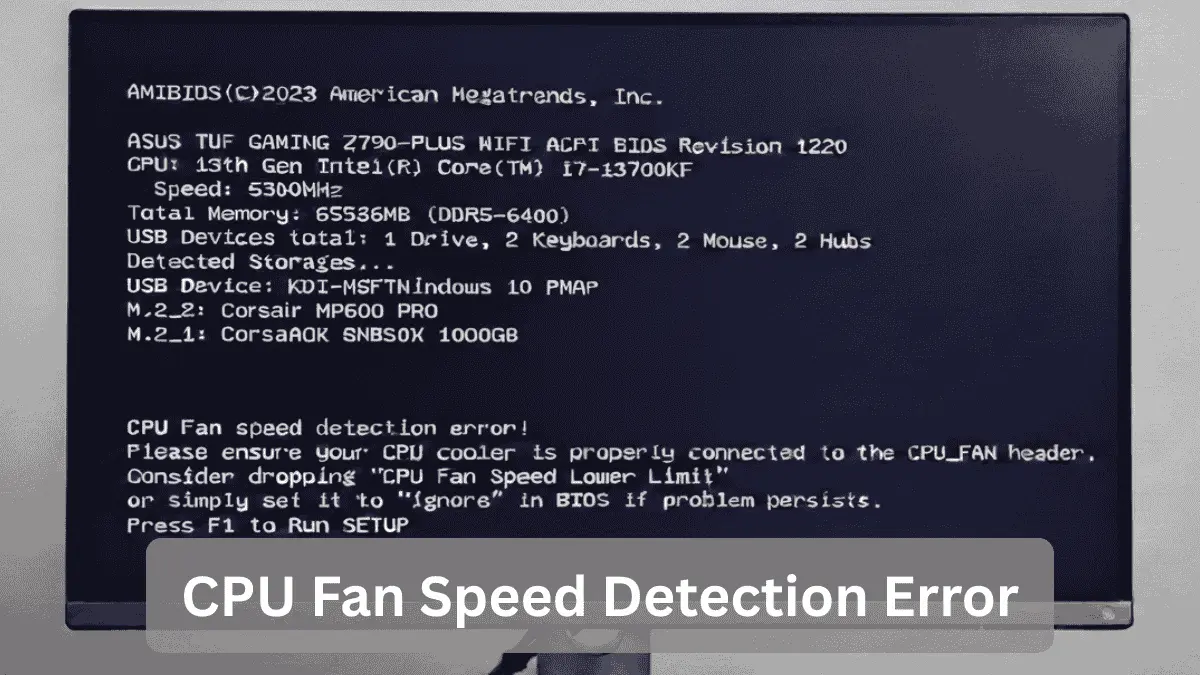
Seeing a CPU fan speed detection error during boot can stop you in your tracks. This message appears when your motherboard cannot properly read the RPM signal from the CPU fan or pump in a liquid cooling setup, often due to a simple connection or BIOS setting rather than a failed component.
In this guide, you will learn what triggers this error, how to fix it quickly, and how to prevent it from coming back whether you are new to PC building or fine-tuning an advanced setup.
Quick Fix: Try This First (2 Minutes Solution):
Follow these quick steps to clear the CPU fan speed detection error:
- Make sure the fan or pump tach cable is plugged into CPU_FAN, not CHA_FAN or SYS_FAN
- Restart your PC and enter BIOS/UEFI
(Common keys: Delete, F2, F10, Esc — varies by brand and system) - Open the Hardware Monitor / Fan Control / Monitor section
(Name may vary depending on motherboard brand) - Find the option related to CPU Fan Warning / Low RPM Limit / Fan Monitoring
- Set the value to 200 RPM or choose Ignore / Disabled
- Save changes and exit BIOS
If the error disappears after a reboot, your cooling system is working normally. The warning was caused by a strict fan speed limit, not a hardware failure.
What Is a CPU Fan Speed Detection Error?
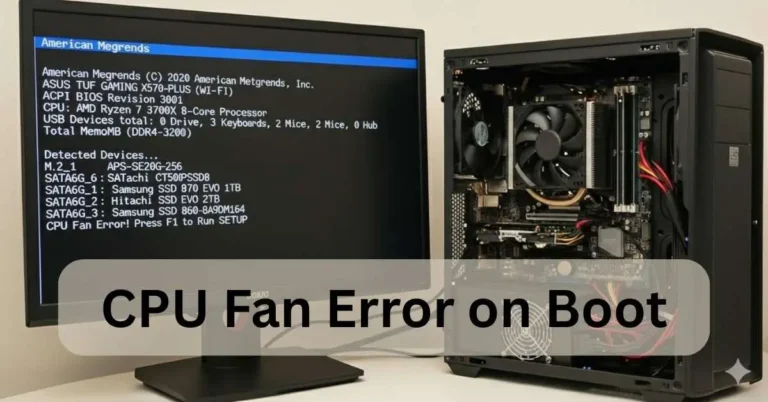
This message appears during POST when your motherboard can’t read an RPM (tachometer) signal from the CPU cooling device. That device can be:
- A fan (air cooler)
- Or a pump (AIO liquid cooler)
The BIOS uses this signal as a safety check. If it sees 0 RPM or a value below its minimum limit, it pauses the boot process to protect your CPU from overheating.
This situation commonly appears after:
- Cleaning the PC
- Replacing or upgrading a cooler
- Updating BIOS
- Installing an AIO for the first time
Why This Error Happens (Most Common Causes):
1. Fan or Pump Plugged into the Wrong Header:
Your main cooler must connect to CPU_FAN. If it’s in CHA_FAN, SYS_FAN, or CPU_OPT, the BIOS may not detect it and trigger the warning.
2. Low-RPM or Silent Fans:
Some modern fans operate at very low speeds at idle (300–500 RPM). If your BIOS expects 600+ RPM, it may assume the fan has failed.
3. AIO Liquid Cooler Wiring:
Many AIOs:
- Send pump RPM through a thin 3-pin or 1-pin cable
- Connect fans to a hub or AIO_PUMP header
If nothing is plugged into CPU_FAN, the motherboard may not detect an active cooling device.
If your system keeps overheating even after cleaning, this CPU over temperature error guide walks through deeper fixes.
4. Dust and Debris:
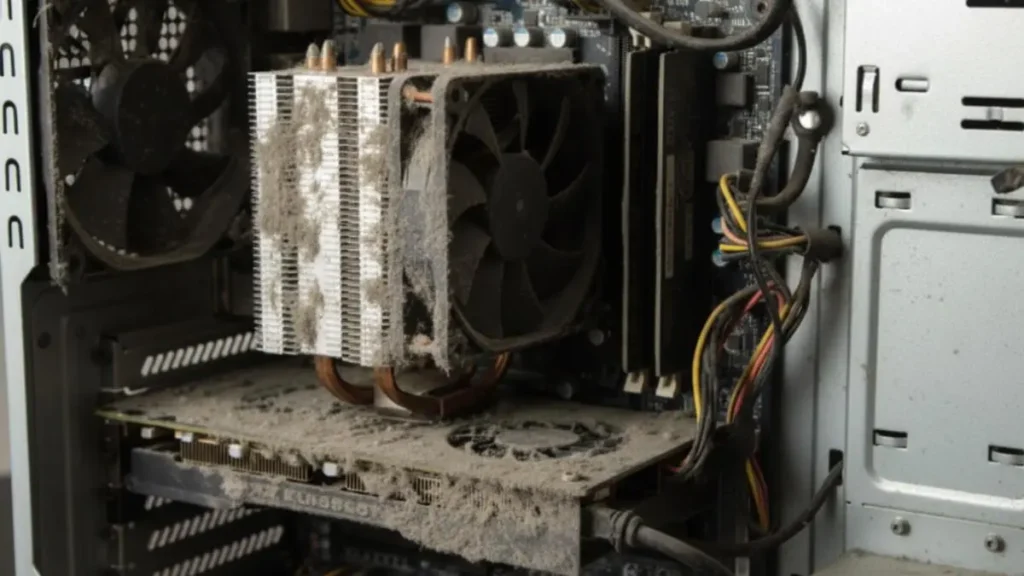
Dust buildup can reduce airflow and slow fan rotation enough to fall below the detection threshold.
5. Faulty Fan or Damaged Tach Wire:
If the RPM wire is damaged, the fan may spin, but the motherboard cannot read its speed.
Step-by-Step Fix (Beginner Safe – 10 Minutes):
1: Power Down Safely:
- Shut down the PC
- Unplug the power cable
- Press the power button once to discharge leftover power
2: Find the CPU_FAN Header:
Look near the CPU socket for a 4-pin header labeled:
- CPU_FAN or CPU_FAN1
3: Reseat the Tach Cable:
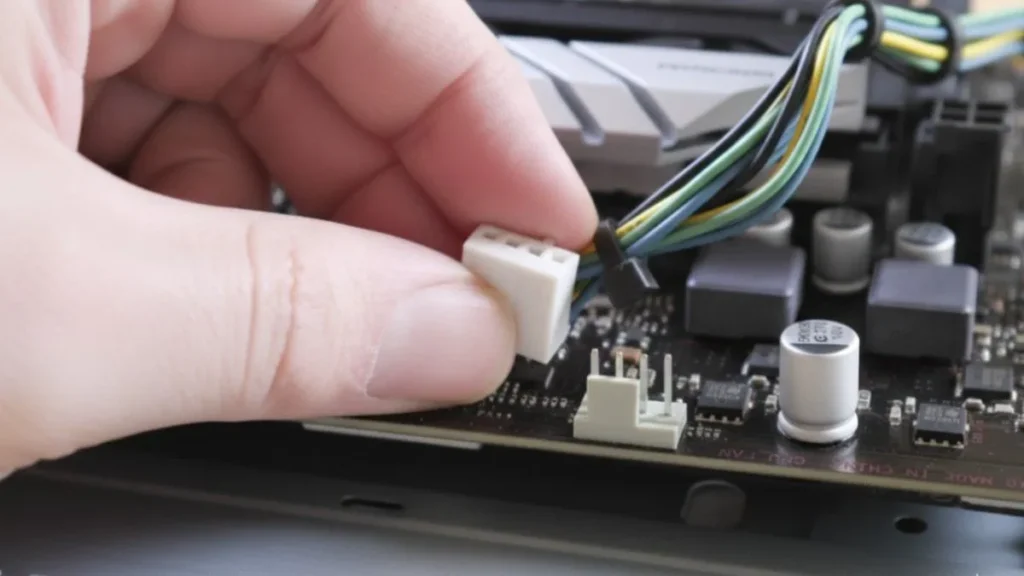
Unplug and firmly reconnect the fan or pump tach cable. Align the notch before inserting to avoid bending pins.
4: Quick Dust Check:
Hold the fan blades and use compressed air to clean the heatsink and fan.
5: Boot into BIOS:
Turn on the PC and press Delete or F2 repeatedly.
Not sure if your cooler fits your motherboard properly? Here’s how to check RAM clearance with CPU coolers before reinstalling.
BIOS Fix That Solves Most Cases:
For Air Coolers:
- Enter BIOS → Monitor / Hardware / Q-Fan / Smart Fan
- Find CPU Fan Speed Low Limit
- Set it to 200–400 RPM
- Save and exit
For AIO Liquid Coolers:
- Enter BIOS → Fan Settings
- Set CPU Fan Speed = Ignore
- Make sure the pump tach cable is plugged into CPU_FAN
Only use “Ignore” if you have verified that temperatures remain within a safe range during normal use.
CPU_FAN vs CPU_OPT vs SYS_FAN (Simple Explanation):
Here’s how different fan headers affect this error:
| Header | Purpose | Triggers Error |
| CPU_FAN | Main CPU cooler (fan or pump RPM) | No |
| CPU_OPT | Secondary CPU fan | Sometimes |
| SYS/CHA_FAN | Case fans | Yes |
Always use CPU_FAN for the cooler’s RPM signal.
How to Confirm Your Cooling Is Working:
After Windows boots, install one of these tools:
- HWMonitor (simple)
- HWiNFO (advanced)
Typical Temperature Ranges:
- Idle: 30–50°C (Intel & AMD)
- Load: 60–85°C (varies by CPU model and cooling)
If temperatures rise rapidly, shut down the system and recheck the cooler installation.
You can also monitor real-time power draw using this CPU power consumption guide for deeper diagnostics.
Deep Cleaning Guide (Prevent Repeat Errors):
You will need:
- Compressed air
- Soft brush
- Isopropyl alcohol (optional)
Steps:
- Remove the side panel
- Detach the fan if possible
- Hold the blades and blow air through the heatsink fins
- Use a soft brush for stubborn dust
- Reinstall and reconnect
Cleaning every 3–6 months helps prevent recurring detection issues.
When to Replace the Fan or Cooler:
Replacement may be necessary if you observe:
- Persistent grinding or rattling noise
- Fan does not spin
- BIOS consistently shows 0 RPM after reseating
Quick Buying Tips:
- Choose a PWM (4-pin) fan for better speed control
- Match the cooler to your CPU socket (LGA 1700, AM5, etc.)
Advanced Troubleshooting (Optional):
Diving deeper? These tips go beyond basics.
- Test with Multimeter: Check voltage on the fan header (should be 12V). If low, suspect PSU issues.
- Fan Curve Customization: In BIOS or software like FanControl, set custom profiles to ensure spin-up at low speeds.
- BIOS Flash Update: Download the latest from your mobo maker fixes buggy detections in newer Ryzen or Intel chips.
- Alternate Headers: Use CPU_OPT for redundancy if available, rerouting signals.
- Sensor Calibration: Some boards allow manual RPM adjustments; experiment carefully to avoid throttling.
- Compatibility Checks: Ensure PWM (4-pin) for variable speed; DC (3-pin) might need adapters.
If you are overclocking, this error could tie into voltage tweaks reset to defaults first.
For official BIOS updates and compatibility details, check the ASUS motherboard support page (steps are similar for MSI and Gigabyte boards).
How to Prevent CPU Fan Speed Detection Errors:
Avoid recurrence with proactive habits.
- Regular case cleaning to prevent dust.
- Secure all cables during builds or upgrades.
- Update BIOS and drivers quarterly.
- Choose compatible coolers, check mobo specs.
- Monitor temperatures during stress tests, such as Prime95.
- Use quality PSUs for stable power.
In everyday use, these steps keep your system error-free, especially in hot climates.
FAQs:
1. Is it safe to ignore CPU fan speed detection in BIOS?
It can be used for AIO setups if temperatures are monitored regularly. It is not recommended for standard air coolers without additional monitoring.
2. Can this error damage the CPU?
The warning itself does not cause damage, but continued operation without proper cooling can lead to overheating.
3. Why does this happen after a BIOS update?
BIOS updates often reset fan thresholds to default values.
4. What’s the difference between 3-pin and 4-pin fans?
4-pin (PWM) fans allow precise speed control. 3-pin fans use voltage control and may trigger low-RPM warnings.
5. Why does my AIO show 0 RPM?
The pump tach cable is not connected to CPU_FAN.
Conclusion:
A CPU fan speed detection error usually comes from a header connection, BIOS threshold, or wiring issue rather than a failed component. Checking the connection, adjusting the RPM limit, and keeping the system clean can resolve most cases without replacing hardware.
Explore more CPU troubleshooting guides to fix overheating, fan errors, and BIOS issues on TechiDream.