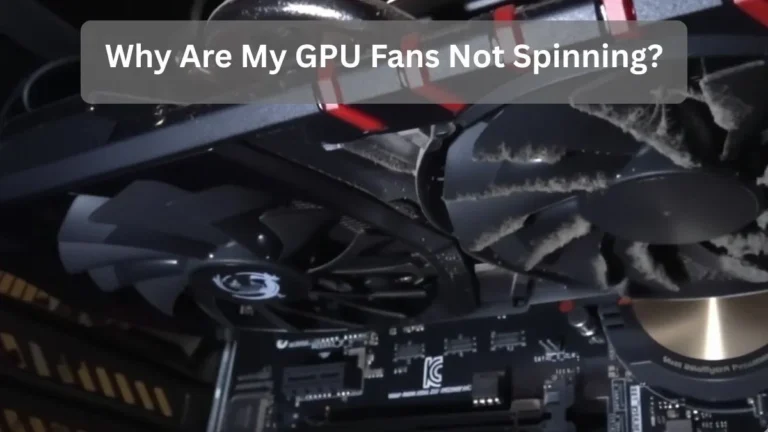
How to Check CPU & GPU Temperature? (Safe Limits Guide)
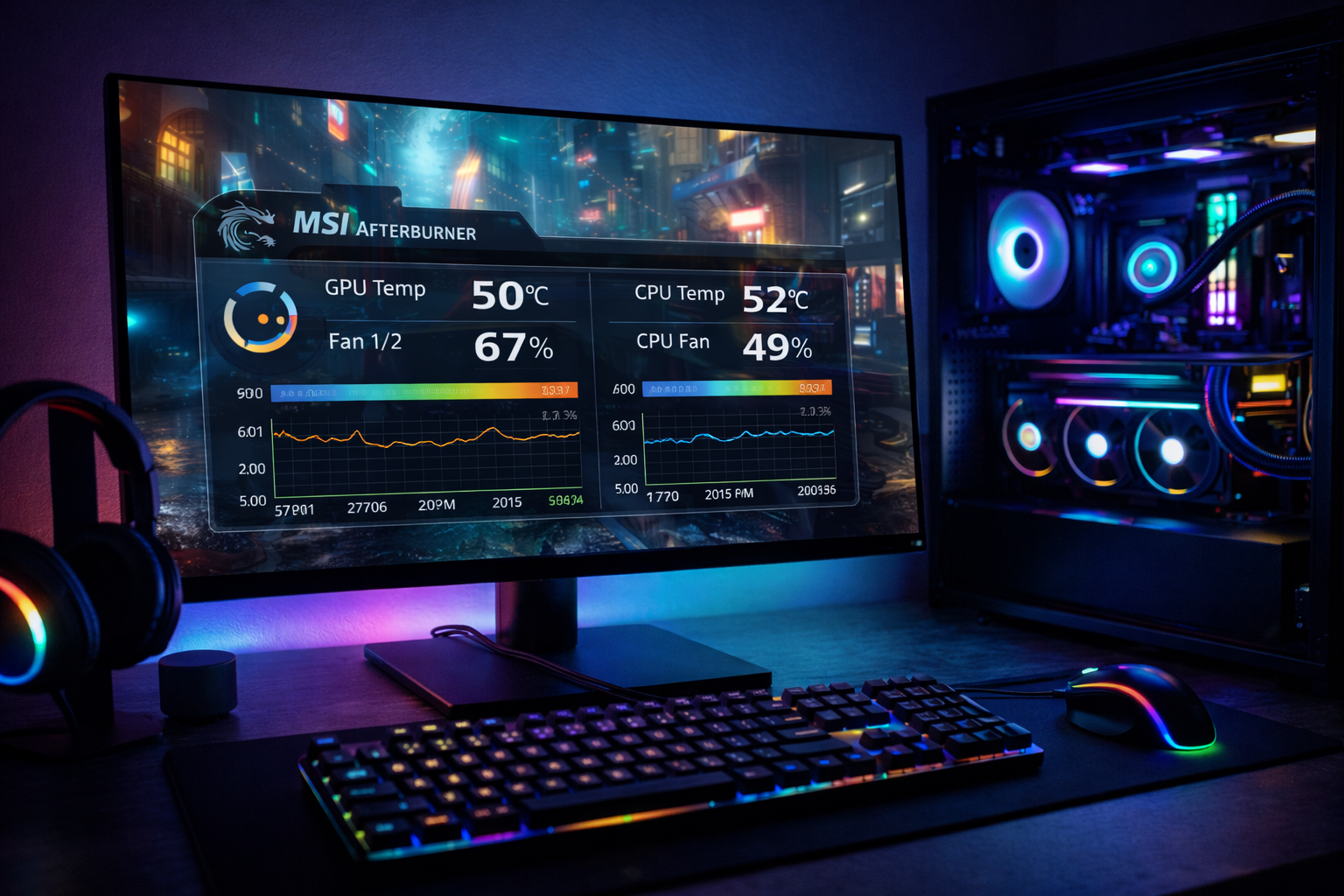
To check GPU and CPU temperatures, open Task Manager (Windows 10/11) for basic GPU stats, or enter the BIOS for CPU readings. For accurate, real-time monitoring, use trusted tools such as HWMonitor, MSI Afterburner, or Core Temp to easily view temperature levels.
Understanding normal temperature ranges and how to track them in real time helps you prevent damage, improve airflow, and keep your computer running smoothly and efficiently.
Why Monitoring CPU and GPU Temperature Is Important?
High temperatures reduce performance and shorten component lifespan.
When:
- A CPU runs above 95°C for long periods
- A GPU stays above 90°C during gaming
Thermal throttling reduces clock speeds automatically to protect the hardware. This can lower FPS, slow rendering, and cause stuttering.
With modern 4K gaming, AI workloads, and high refresh rates in 2026, keeping temperatures under control is more important than ever.
If your CPU stays above safe limits, learn what temperature is too hot for a CPU to avoid permanent damage.
Common Problems Caused by High Temps:
- Sudden game crashes
- Loud fans running at full speed
- Reduced CPU/GPU lifespan
- Performance drops during heavy tasks
Safe CPU and GPU Temperature Ranges:
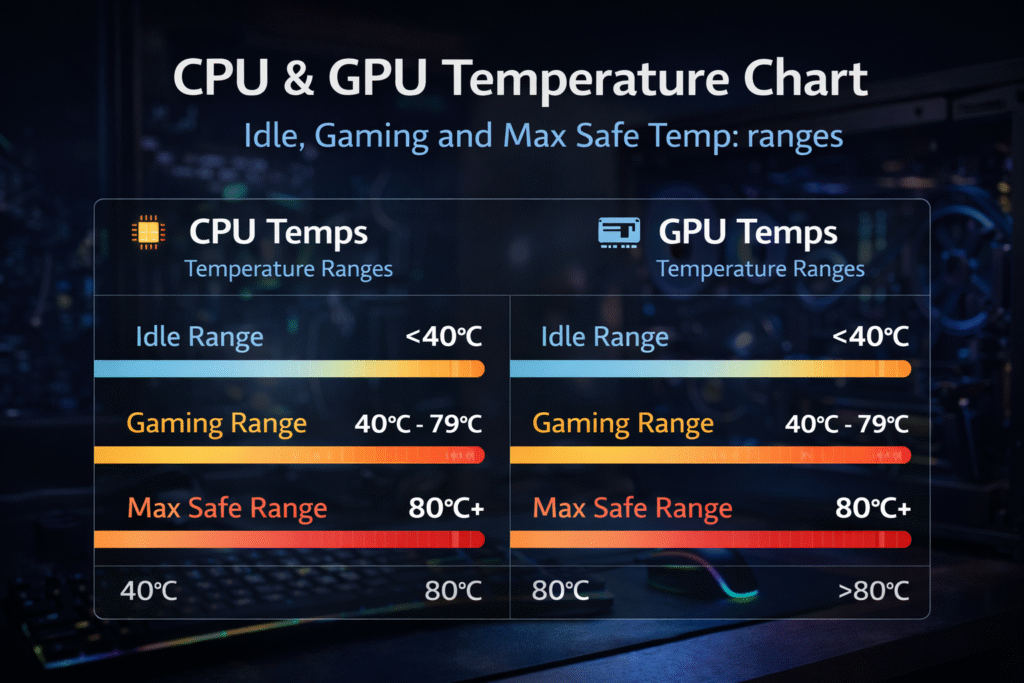
CPU Idle: 30 to 50°C
CPU Gaming / Load: 60 to 85°C
Maximum Safe (Short Burst): 95°C
GPU Idle: 30 to 45°C
GPU Gaming: 65 to 80°C
Maximum Safe (Short Burst): 88 to 90°C
If your system stays above these numbers for long periods, airflow or cooling needs improvement.
Wondering if 80°C is safe? Read our guide on whether 80°C is hot for a CPU.
How to Check GPU Temperature in Windows (No Software)
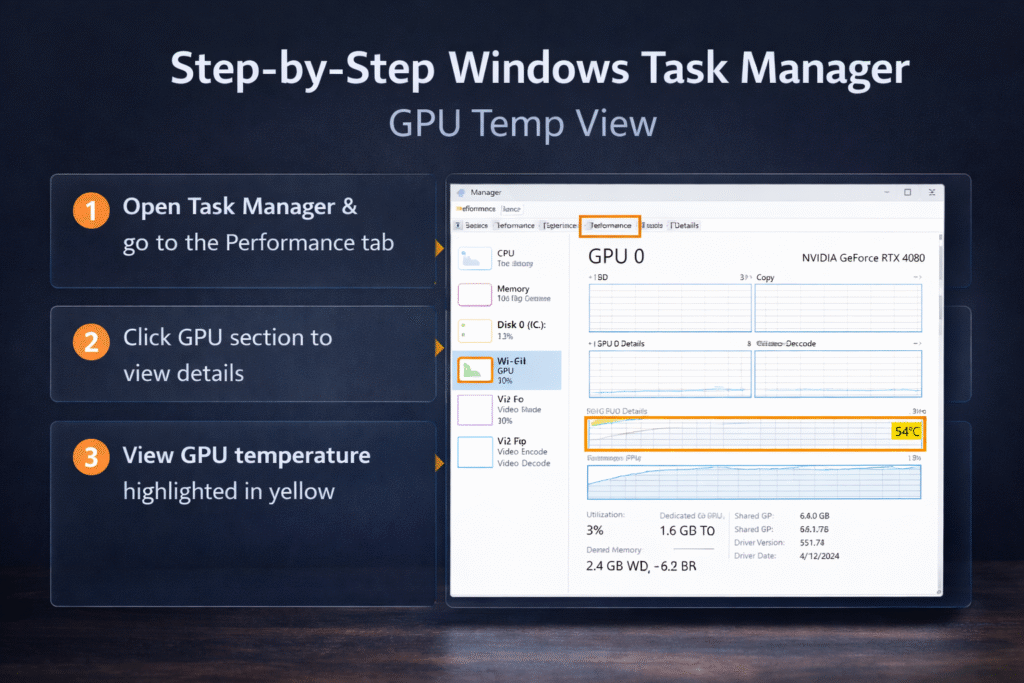
Method 1: Task Manager (Fastest Way)
- Press Ctrl + Shift + Esc
- Click the Performance tab
- Select GPU
- Look at GPU Temperature
Works on Windows 11 and newer Windows 10 builds.
Note: This does NOT show CPU temperature.
Method 2: Xbox Game Bar (While Gaming)
- Press Win + G
- Open the Performance widget
- Enable GPU monitoring
This shows real-time GPU temperature inside games.
How to Check CPU Temperature Without Installing Software
BIOS / UEFI Method (Most Accurate Idle Reading)
- Restart your PC
- Press Del, F2, or F10 during boot
- Open Hardware Monitor / PC Health
- Find CPU Temperature
This shows the temperature without Windows load. It is useful for checking baseline cooling performance.
Best Free Software to Monitor CPU and GPU Temperatures
For full monitoring, third-party tools are better.
| Tool | CPU | GPU | In-Game Overlay | Best For |
| HWMonitor | ✔ | ✔ | No | Beginners |
| HWiNFO | ✔✔ | ✔✔ | Yes | Advanced users |
| Core Temp | ✔✔ | Limited | Tray only | CPU focus |
| MSI Afterburner | ✔ | ✔✔ | ✔✔ | Gamers |
Download only from official websites to avoid malware.
Best Tool for Most Users (2026 Recommendation)
If you want:
- Detailed sensor data: Use HWiNFO
- Simple temperature check: Use HWMonitor
- Gaming overlay: Use MSI Afterburner
For gamers, Afterburner + RTSS remains the most practical setup.
Download only from official sites to stay safe: cpuid.com/hwmonitor, hwinfo.com, alcpu.com/CoreTemp.
How to Check GPU Temperature While Gaming (Step-by-Step)
- Install MSI Afterburner
- Install RivaTuner Statistics Server (RTSS)
- Open Afterburner → Settings → Monitoring
- Enable:
- GPU Temperature
- CPU Package Temperature
- Click Show in On-Screen Display
Now you can see temperatures live while playing.
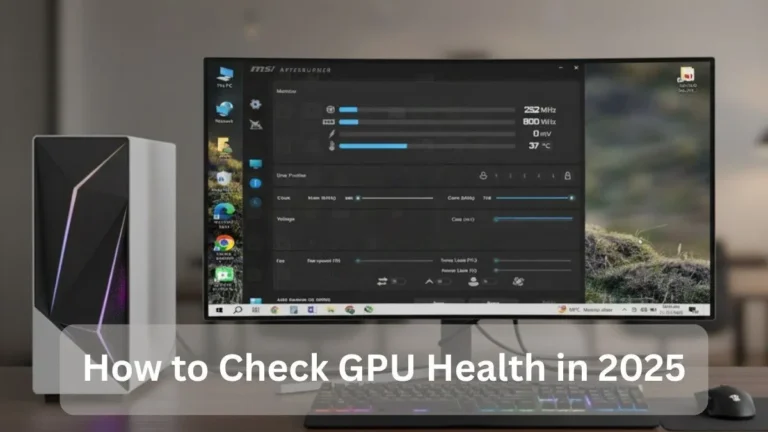
If you’re unsure about your graphics card’s condition, learn how to check GPU health to detect potential hardware issues early.
Advanced Monitoring (For Power Users)
If you want a deeper analysis:
- Use HWiNFO sensors-only mode
- Enable logging to export CSV reports
- Use the command line (NVIDIA users):
nvidia-smi -l 1
This helps diagnose sudden temperature spikes.
Signs Your CPU or GPU Is Overheating:
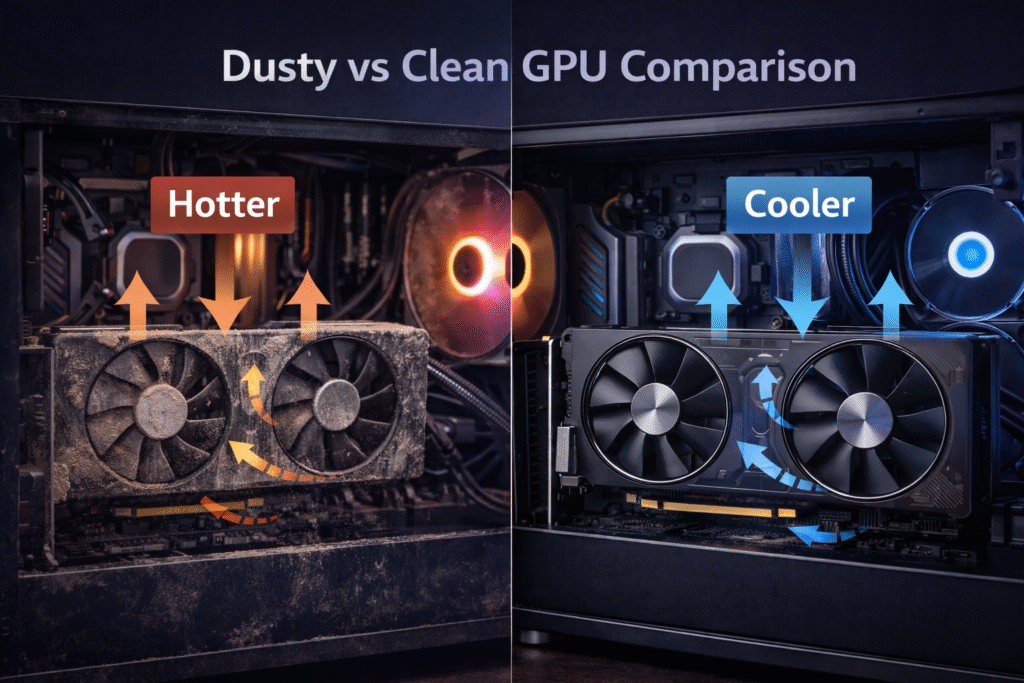
- FPS suddenly drops during gaming
- System shuts down under load
- Fans are constantly at maximum speed
- The laptop keyboard area feels very hot
If you notice these symptoms, check temperatures immediately.
If your system shows a warning, here’s how to fix the CPU over temperature error quickly.
How to Reduce High CPU and GPU Temperatures?
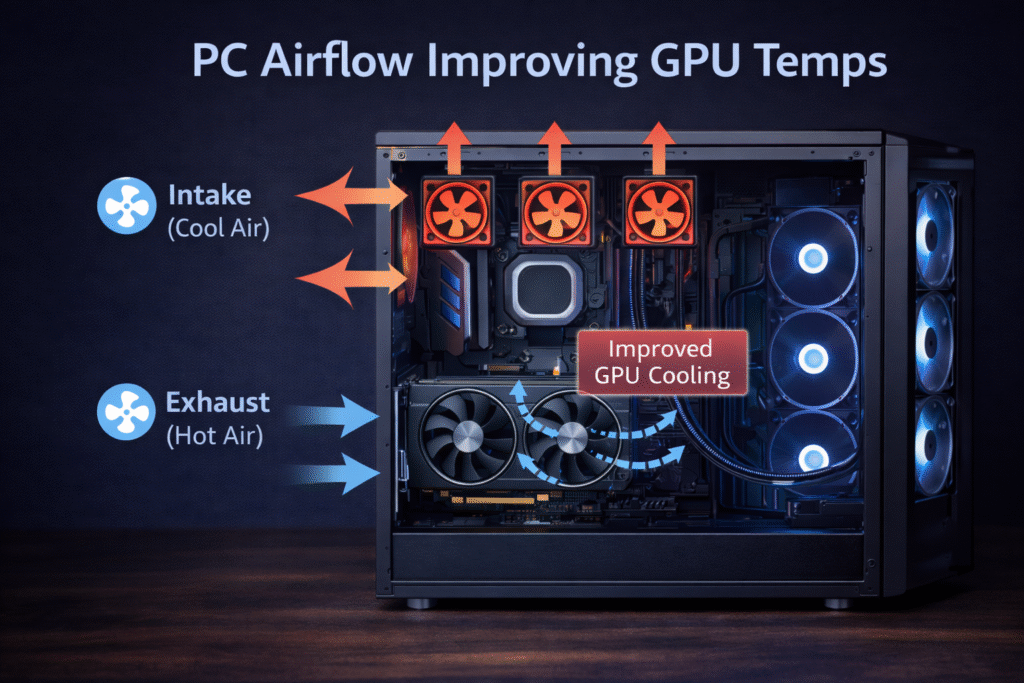
Quick Fixes:
Clean dust from fans and heatsinks
Improve case airflow
Replace thermal paste (every 2–3 years)
Adjust fan curves in BIOS
Undervolt GPU using MSI Afterburner
Elevate the laptop rear or use a cooling pad
In many cases, simple airflow optimization can reduce GPU temperature by 10 to 15°C.
Expert Cooling Tips:
- Keep average GPU gaming temperature under 82°C
- Keep CPU load temperature under 85°C
- Test stability using Prime95 or 3DMark
- Avoid cheap thermal paste
- Maintain positive airflow inside the case
Logging temperatures during a 30-minute gaming session gives a realistic performance baseline.
FAQ’s:
How do I check my GPU temperature quickly?
Open Task Manager → Performance → GPU. For gaming, use MSI Afterburner.
Does Windows show CPU temperature?
No. Windows shows GPU temperature only. Use BIOS or monitoring software for CPU readings.
What is a normal GPU temperature while gaming?
65 to 80°C is normal. Sustained 90°C requires cooling improvements.
Is 90°C too hot for a CPU?
Yes, if sustained for long periods. Short spikes are acceptable on modern CPUs.
What is the best free software to check CPU and GPU temperature?
HWiNFO for detailed monitoring. MSI Afterburner for gaming overlays.
Conclusion:
Knowing how to check GPU and CPU temperature helps protect your PC from overheating and performance loss. You can use built-in Windows tools for basic checks, but monitoring software gives better accuracy and real-time tracking.
Make temperature checks part of your monthly PC maintenance routine. A cooler system runs quieter, lasts longer, and performs better.