Do GPU Fans Always Spin? Zero RPM Explained (Fix & Safe Temps)
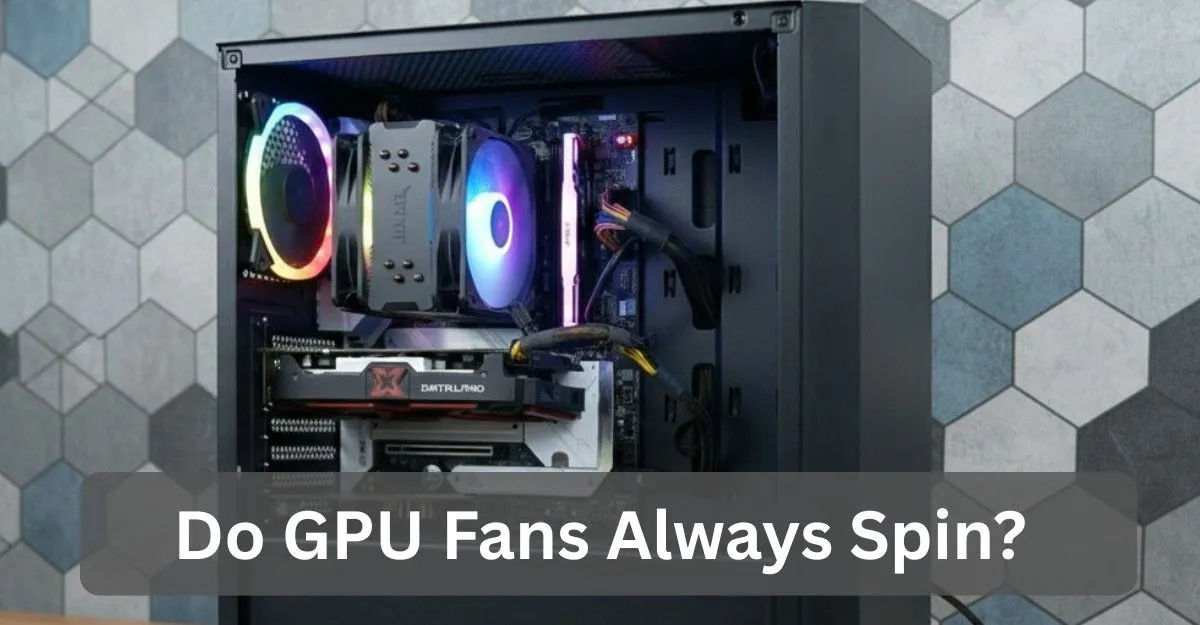
GPU fans do not always spin. Most modern graphics cards support Zero RPM mode, where fans stay off during light use or low temperatures and start spinning only when the GPU heats up during gaming or other demanding tasks.
In this guide, You’ll learn why this happens, when GPU fans are supposed to spin, what temperatures are considered safe, and how to tell the difference between normal behavior and a real problem.
What Is Zero RPM Mode & Why Do GPUs Use It?
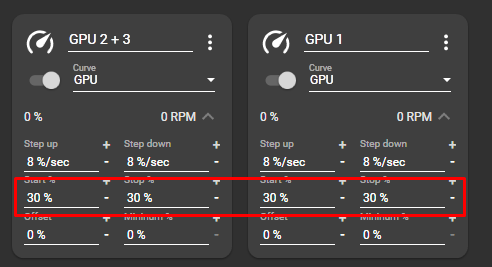
Do GPU fans always spin? Zero RPM mode is a semi-passive cooling feature where GPU fans stay completely off until a certain temperature or power limits are reached.
Modern GPUs constantly monitor:
- GPU core temperature
- Hotspot sensors
- VRAM temperature
- Power draw and workload
When the system is idle, passive heatsinks alone are enough to keep temperatures safe.
Modern graphics cards are officially designed to operate silently at low temperatures, as explained in NVIDIA’s official GPU architecture documentation.
If your fans never move at idle, this detailed guide explains why GPU fans not spinning is usually normal.
Why did manufacturers add Zero RPM mode?
- Completely silent desktop operation (0 dB noise)
- Less dust is pulled into the GPU
- Longer fan lifespan due to fewer running hours
- Slightly lower idle power usage
Idle temperatures between 30°C and 50°C are commonly observed even with fans stopped.
Zero RPM mode is standard on most modern gaming graphics cards from major manufacturers.
Typical NVIDIA vs AMD fan behavior:
NVIDIA graphics cards:
Fans typically start spinning around 50 to 55°C or when power draw rises above ~30W.
AMD Radeon graphics cards:
AMD often allows manual fan control through Adrenalin software. Zero RPM usually stays active until around 55 to 60°C.
Typical Idle Temperatures:
Most modern GPUs idle between 30°C and 50°C with fans stopped.
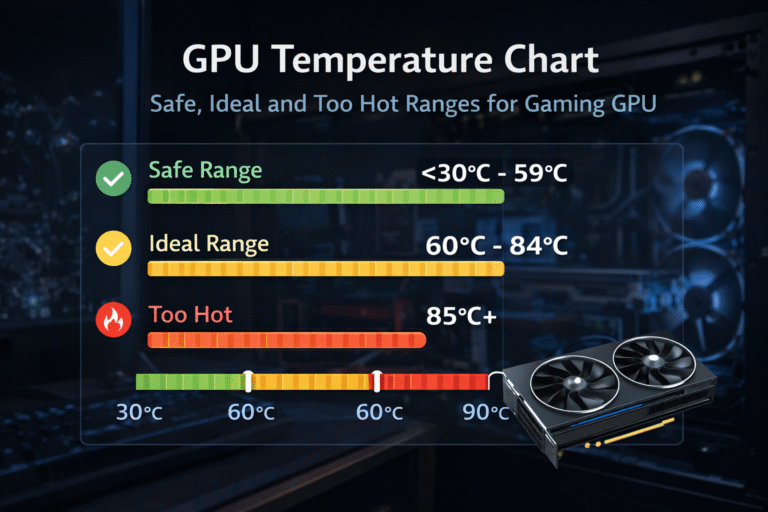
Modern GPUs are designed to operate safely well above 90°C under load, so these idle numbers are normal.
Not sure if your temperatures are healthy? Check the complete safe GPU temperature ranges guide.
When Do GPU Fans Actually Start Spinning?
GPU fans do not react to temperature alone. They activate based on a mix of factors:
- Core temperature
- Hotspot temperature
- Power usage
- Manufacturer fan curve settings
Typical behavior:
- 0 RPM: up to 50 to 60°C
- Low spin: 20 to 30% speed around 55 to 65°C
- Heavy gaming: rapid ramp above 75 to 80°C
Most cards also perform a short startup fan test when you power on your PC. Fans briefly spin at high speed for 1 to 2 seconds. This is normal and confirms hardware health.
Pro Tip:
If fans never stop, even below 40°C, background apps like browsers, overlays, or video playback may be keeping GPU power usage above the fan-stop threshold.
Understanding what temperature is too hot for a GPU helps explain why fans suddenly ramp up during gaming.
Is It Normal for GPU Fans Not to Spin at Idle?
Yes, this is now expected behavior on nearly all modern GPUs.
Many new builders worry when fans stop, but Zero RPM mode is intentionally designed this way.
Normal behavior:
- Desktop use with fans off
- Idle temps between 30–50°C
- Fans start instantly during gaming
Possible warning signs:
- Idle temperature above 65°C
- One fan never spins during gaming
- Fans stop and never restart under load
- Large hotspot temperature difference (20°C)
Some graphics cards may occasionally keep fans running after heavy workloads due to firmware or driver behavior. A driver reinstall or BIOS update usually fixes this.
Pros and Cons of Zero RPM vs Always Spinning:
| Aspect | Zero RPM Mode | Always Spinning |
|---|---|---|
| Idle Noise | Completely silent | Slight noise |
| Idle Temp | Slightly higher | Lower |
| Dust | Reduced | Higher |
| Fan Wear | Less | Continuous |
| Hotspot | Safe | Slightly cooler |
| Power | Lower | 2–5W higher |
Expert Verdict:
Zero RPM is excellent for silence and dust control.
However, many enthusiasts prefer a gentle, always-on fan curve to keep VRAM and hotspot temperatures slightly cooler over long periods.
Both approaches are safe when the airflow inside the case is good.
How to Monitor GPU Fan Speed & Temperatures:
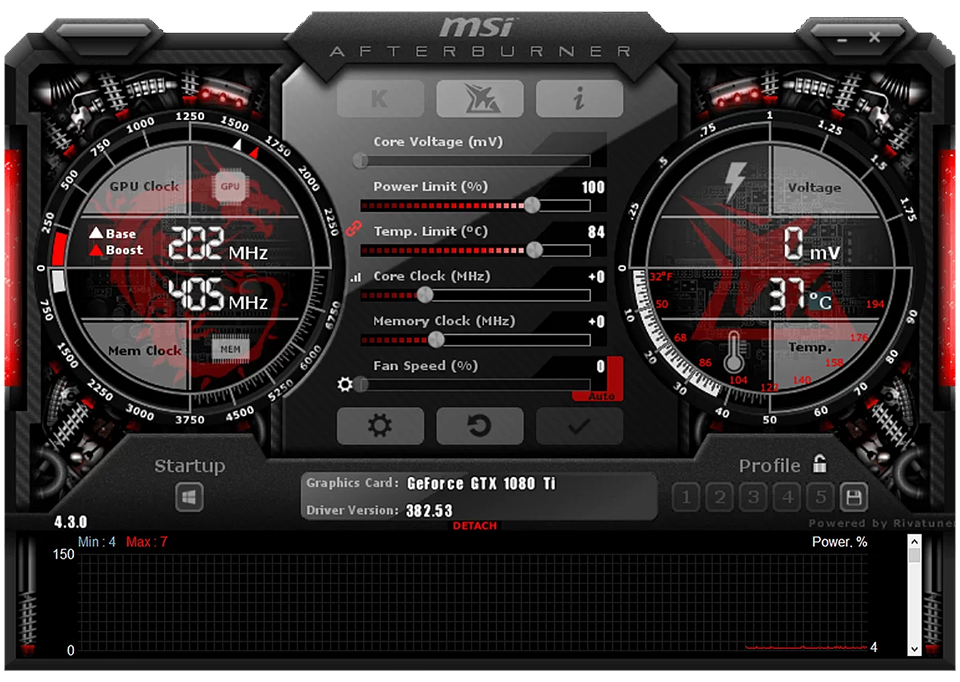
Recommended free tools:
- GPU-Z shows Fan Stop status
- HWInfo64 advanced sensor monitoring
- MSI Afterburner + RTSS control and monitoring together
- AMD Adrenalin Software
Enable On-Screen Display (OSD) in Afterburner to watch live temperatures and fan speed during gaming.
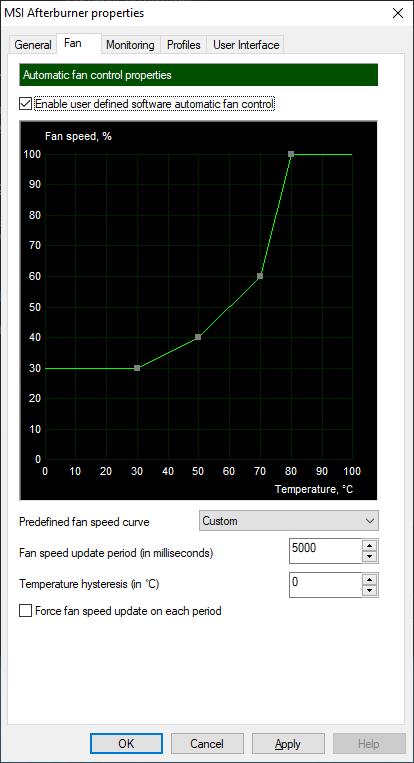
Step-by-Step: Create Custom Fan Curve (NVIDIA MSI Afterburner)
- Install MSI Afterburner and RivaTuner Statistics Server.
- Open Settings → Fan tab.
- Enable User-Defined Fan Control.
- Adjust curve points.
Balanced fan curve example:
- 30 to 45°C → 0 to 20%
- 50°C → 30%
- 60°C → 45%
- 70°C → 60%
- 80°C → 80%
- 90°C+ → 100%
Apply settings and enable the startup profile.
This keeps the system quiet while avoiding sudden fan noise spikes.
Step-by-Step: Custom Fan Curve (AMD – Adrenalin)
- Open AMD Software → Performance → Tuning.
- Enable Manual Fan Tuning.
- Disable or adjust Zero RPM mode.
- Set temperature points similar to those above.
- Save the profile.
Starting the fan ramp slightly earlier often improves VRM cooling on high-power cards.
Common Problems & Quick Fixes:
One fan is not spinning:
Check cable connections or test under load using FurMark. If only one fan works, the bearing may be faulty.
Fans spin then stop repeatedly:
Usually caused by background GPU activity. Close heavy browser tabs or overlays.
Loud fan spin-up:
Normal when fans move from 0 RPM to active cooling. A smoother fan curve reduces noise.
Fans never stop even at low temperatures:
This may be caused by background GPU usage, driver issues, or custom fan settings.
- Clean driver install using DDU
- Lower power limit slightly
- Update GPU BIOS if available
If problems continue, learning how to check GPU health properly can help detect deeper hardware issues.
Expert Tips & Advanced Cooling Strategies:
After testing multiple airflow setups, these approaches work best:
Hybrid Method:
Keep Zero RPM enabled, but allow 15 to 25% fan speed above 40°C.
Undervolt + Fan Curve:
Lower voltage reduces heat output, allowing quieter cooling and better efficiency.
When to worry:
- Idle hotspot above 75°C
- Gaming hotspot above 95°C consistently
Dust maintenance
Zero RPM systems usually need cleaning every 12 to 18 months instead of 6 to 9 months.
Decision guide:
- Silence priority → Stock Zero RPM
- Gaming PC → Gentle custom curve
- Workstation or 24/7 use → Low constant RPM + undervolt
FAQ’s:
Why are not my GPU fans spinning?
Zero RPM mode is active. Fans start only when the temperature or load increases.
Is it bad if GPU fans are not spinning?
No, Modern GPUs are designed for passive cooling at idle.
When do GPU fans start spinning?
Usually around 50 to 60°C, depending on the model and BIOS.
Should I disable Zero RPM mode?
Only if you want slightly cooler temperatures and do not mind constant fan noise.
Is Zero RPM still good?
Yes. Most modern GPUs benefit from quieter operation while maintaining safe temperatures.
Conclusion:
Modern GPU fans are not designed to spin constantly, as Zero RPM technology has become a standard cooling feature that keeps fans off during low temperatures to reduce noise, save energy, and extend fan lifespan without compromising hardware safety.
Whether you prioritize silence, lower temperatures, or long-term component health, the ideal setup depends on your usage, and you can fine-tune performance by monitoring temperatures and adjusting the fan curve to balance cooling efficiency with noise levels.