How to Update GPU Drivers on Windows 10 and 11 (Step-by-Step Guide)
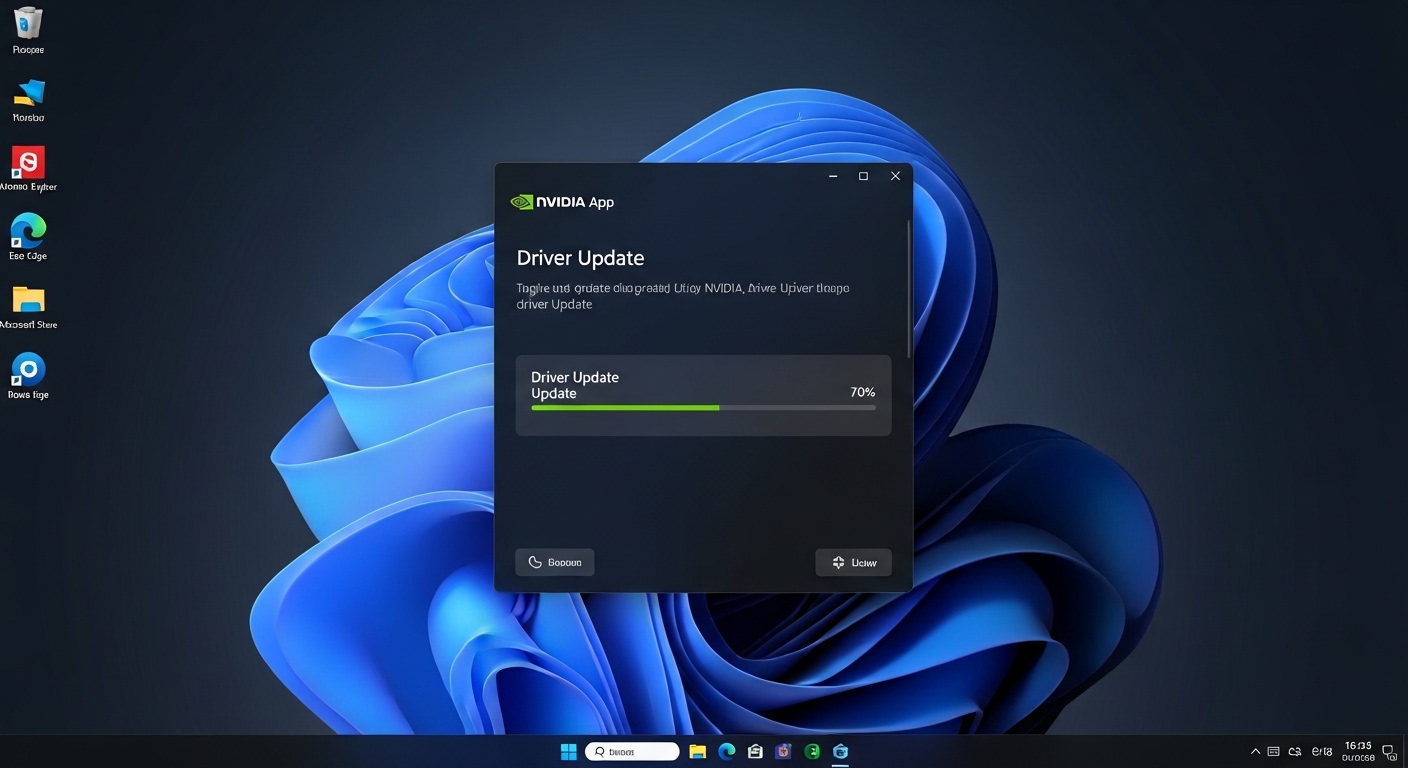
To update GPU drivers on Windows 10 and 11, open your graphics driver software (NVIDIA, AMD, or Intel) or use Device Manager to check for updates. You can also download the latest driver from the official manufacturer’s website and install it. Restart your PC after installation to apply the changes.
In this guide, you will learn the safest and easiest ways to update GPU drivers, improve performance, and fix common driver issues.
Why Update Your GPU Drivers?
Fresh drivers don’t just fix bugs. They unlock real improvements.
Here is what you actually get:
Performance Gains:
New Game Ready or Studio drivers are optimized for the latest games. Features like DLSS 4.5 Super Resolution now support 400+ titles.
Real-world testing shows 5 to 25% FPS improvement in demanding games after a clean update, plus smoother 1% lows.
Stability & Security:
Driver updates fix:
- Random crashes
- Black screens
- System freezes
- Security vulnerabilities
New Features:
- Ray tracing improvements
- AI upscaling
- Better power efficiency
- Reduced input latency
Bug Fixes:
Many common issues are driver-related:
- Code 43 errors
- Screen flickering
- Hybrid graphics problems (laptops)
If your driver is older than 3 to 6 months, you are likely missing optimizations and possibly limiting your GPU performance.
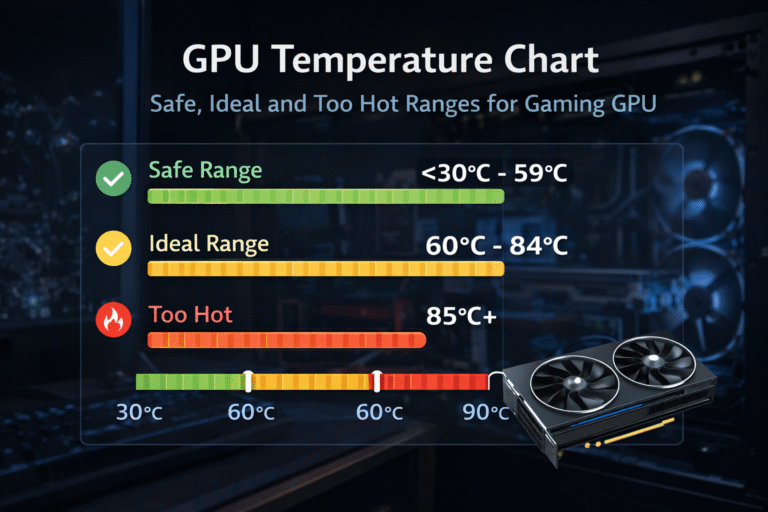
Updating drivers can also fix overheating issues and improve cooling efficiency. It’s important to know what GPU temperature is safe to avoid performance problems.
How to Identify Your GPU Model and Current Driver Version?
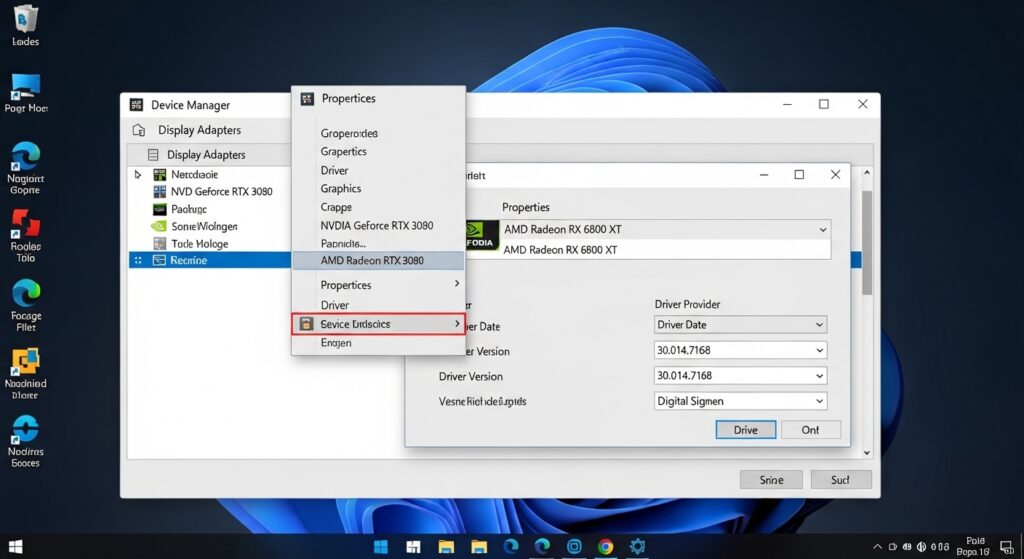
Before updating, confirm what GPU you have installed.
Step 1:
Press Win + X → Device Manager
Step 2:
Expand Display adapters
Step 3:
Right-click your GPU → Click Properties → Driver tab
Note:
- Driver Version
- Driver Date
Pro Tip: Take a screenshot before updating. If something goes wrong, you can easily roll back.
For detailed information, tools like GPU-Z show:
- Exact GPU model
- BIOS version
- PCI-E details
- Current driver version
This is helpful for troubleshooting.
Before updating, make sure your graphics card is working properly. You can also learn how to check GPU health to ensure your hardware is functioning correctly.
How to Update GPU Drivers Using Device Manager:
Best for quick fixes.
Steps:
- Right-click Start → Device Manager
- Expand Display adapters
- Right-click your GPU → Update driver
- Choose Search automatically for drivers
- Restart PC
Limitation:
Windows usually installs older WHQL drivers. This method is safe but not always the newest.
Use this only if official tools fail.
How to Update GPU Drivers Using NVIDIA, AMD, and Intel Tools:
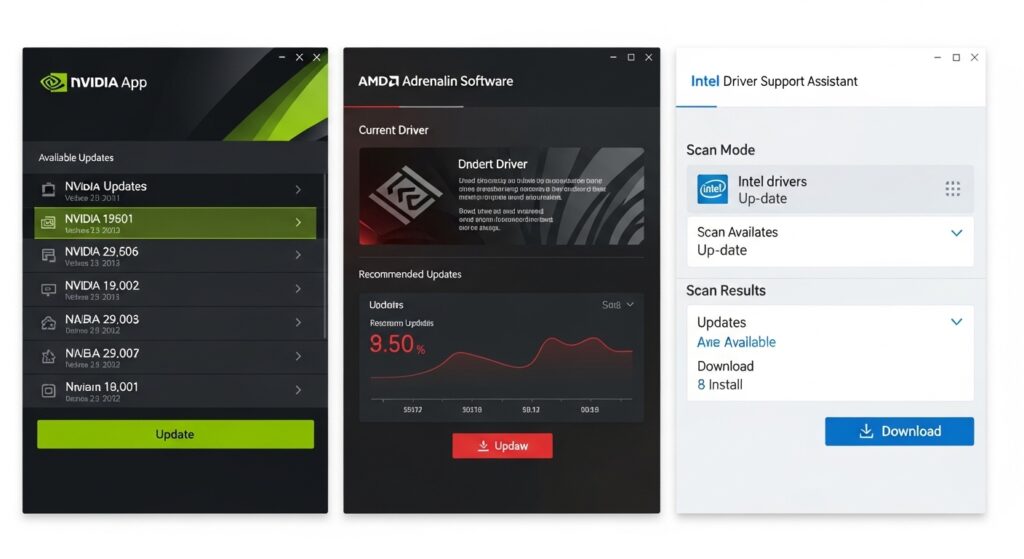
This is the safest and most reliable method.
NVIDIA (NVIDIA App 2026 Standard):
NVIDIA replaced GeForce Experience with the NVIDIA App.
Steps:
- Download the NVIDIA App from the official website
- Install and open the app
- Go to the Drivers tab
- Click Check for Updates
- Select Custom (Advanced)
- Choose Perform a clean installation
A clean install removes old files and prevents conflicts.
Tip:
Use the Game Ready Driver for gaming.
Use Studio Driver for creative work.
AMD (AMD Software: Adrenalin Edition)
Steps:
- Visit AMD Support
- Use Auto-Detect and Install
- Run installer
- Choose:
- Factory Reset (clean install)
- Minimal setup (to skip optional bundles)
- Restart PC
After install:
Open Adrenalin → Home → Manage Updates.
Intel (Driver & Support Assistant):
Best for Intel integrated graphics and Arc GPUs.
Steps:
- Download Intel Driver & Support Assistant
- Run scan
- Install recommended updates
Very simple and beginner-friendly.
How to Update GPU Drivers Using Windows Update:
You can also update through Windows:
Settings → Windows Update → Advanced Options → Optional Updates
Install available GPU drivers.
This method is easy, but not always the newest version.
Advanced Method: Clean Install with DDU (Essential for Problems or Brand Switches):
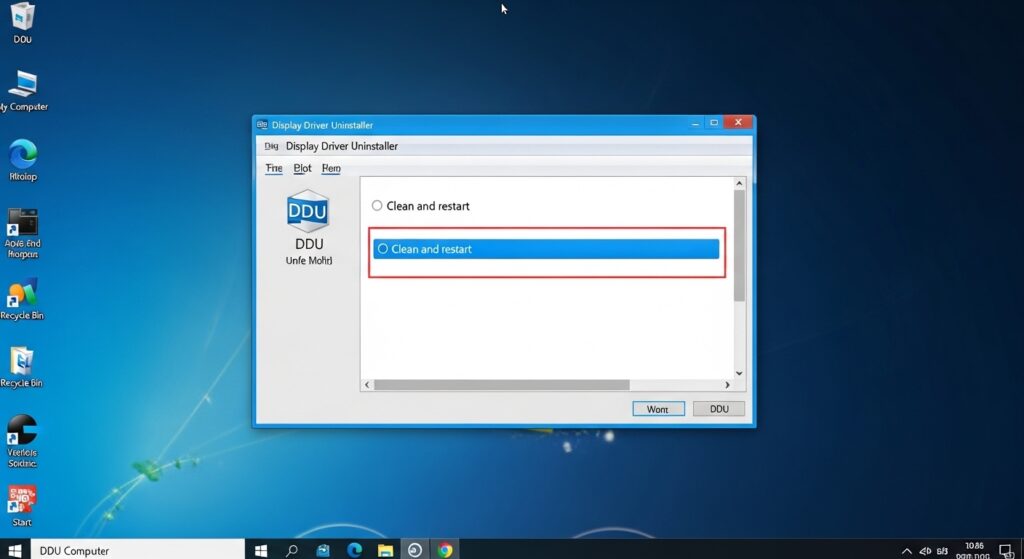
Use this only if:
- Black screen after update
- Crashes continue
- Switching NVIDIA ↔ AMD
- The driver refuses to install
DDU removes all leftover driver files.
Preparation:
- Download DDU
- Download new GPU driver (offline installer)
- Create a System Restore point
Steps:
- Run DDU as Administrator
- Select Clean and Restart
- PC enters Safe Mode
- Run DDU again → Select GPU brand
- Clean and Restart
- Disconnect internet
- Install the new driver
- Restart
Important:
Do not skip Safe Mode. Many users make this mistake.
Laptop-Specific GPU Driver Updates (Hybrid Graphics):
Laptops with dual graphics need extra care.
Correct order:
- Update integrated GPU first (Intel/AMD)
- Then update the dedicated GPU (NVIDIA/AMD)
Avoid DDU unless experienced. It can cause display issues on laptops.
Comparison of Update Methods
| Method | Ease | Clean Install | Best For | Risk |
| Device Manager | Easy | No | Quick fix | Low |
| Official Tool | Easy | Optional | Daily use | Low |
| Windows Update | Easy | No | Background update | Medium |
| DDU Clean | Medium | Yes | Troubleshooting | Medium |
Common Problems When Updating GPU Drivers & Fixes:
Black screen:
Boot Safe Mode → Use DDU → Reinstall driver
Code 43 error:
Run installer as Administrator → Disable antivirus → Try clean install
Windows installs the old driver again:
Disconnect the internet during install
Performance becomes worse:
Device Manager → Driver tab → Roll Back Driver
Best Practices & Expert Tips (2026):
- Update every 1 to 3 months
- Always create a Restore Point
- Use the clean Installation option
- Test performance before and after
- Avoid third-party “driver updater” software
- Use WHQL drivers for maximum stability
For gaming:
Enable Low Latency Mode
Set Power Management to Prefer Maximum Performance
Small tweaks can improve smoothness noticeably.
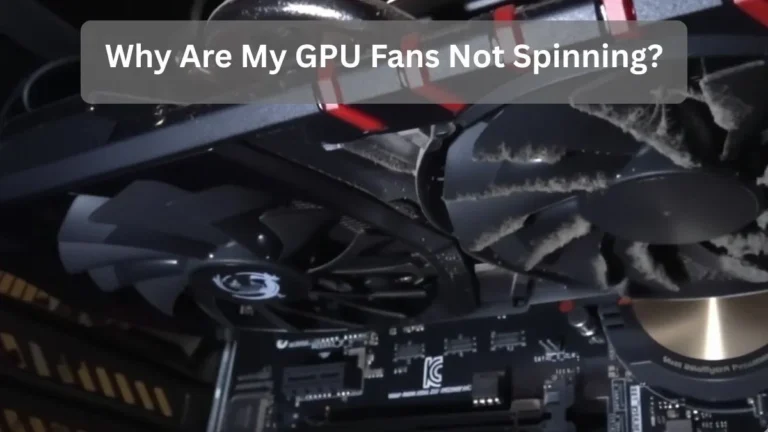
If your GPU still overheats after updating drivers, you may need to fix GPU fans not spinning to restore proper cooling.
Common Mistakes to Avoid:
- Updating without a clean install
- Using DDU incorrectly
- Updating during ga aming session
- Not restarting after install
- Ignoring the rollback option
FAQ’s:
Does updating GPU drivers increase FPS?
Yes, New drivers often improve game optimization, giving 5 to 25% better FPS in newer titles.
Is it safe to update GPU drivers?
Yes, it is safe if you download drivers from official NVIDIA, AMD, or Intel websites.
Should I update GPU drivers regularly?
Yes, updating every 1 to 3 months helps maintain performance, stability, and security.
How to update GPU drivers on Windows 10 and 11?
You can update through Device Manager, Windows Update, or the official NVIDIA App, AMD Adrenalin, or Intel Driver & Support Assistant.
Why won’t my GPU driver update?
Common reasons include antivirus blocking, corrupted old drivers, or Windows conflicts. Using DDU usually fixes the issue.
How do I know if my GPU driver needs updating?
You can check your GPU driver version in Device Manager under Display adapters → Properties → Driver tab. If the driver is older than a few months or you experience crashes, low FPS, or display issues, it’s time to update.
Conclusion:
Knowing how to update GPU drivers ensures better performance, fewer crashes, and improved stability on Windows 10 and 11 systems. When you know how to update GPU drivers, you unlock better FPS, fewer crashes, and improved stability on Windows 10 and 11. Make it a habit to check for new drivers every few months, create a restore point, and use official tools for safe installation.
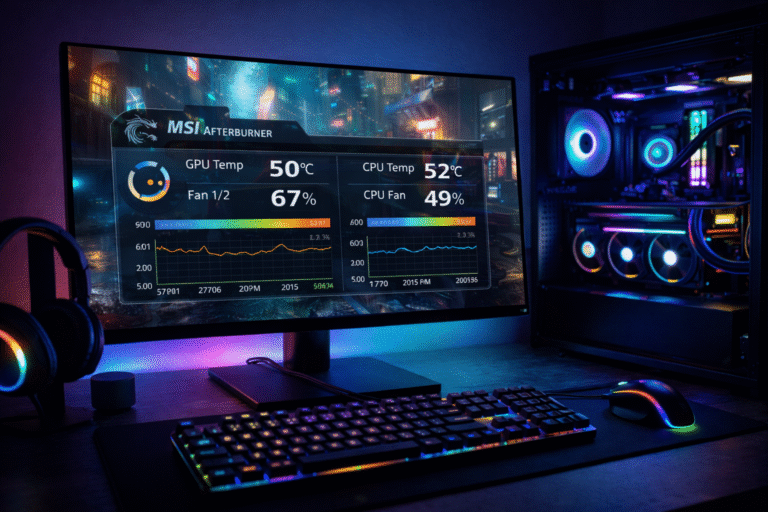
After updating drivers, you should also check CPU and GPU temperature to make sure your system is running safely.