Why Is My GPU Usage at 100% All the Time? Causes, Fixes & Gaming Impact
If your GPU usage is at 100%, it usually means your graphics card is fully utilized. This is completely normal during gaming, rendering, or other heavy tasks. It becomes a concern only if usage remains high while idle or causes overheating, stuttering, or crashes.
This guide explains why GPU usage reaches 100%, when it’s normal, and how to fix high usage while idle.
Understanding What 100% GPU Usage Means
Many users notice GPU usage at 100% all the time when running demanding games, rendering software, or other graphics-intensive applications. This usually means the graphics card is working at its full capacity to handle the workload.
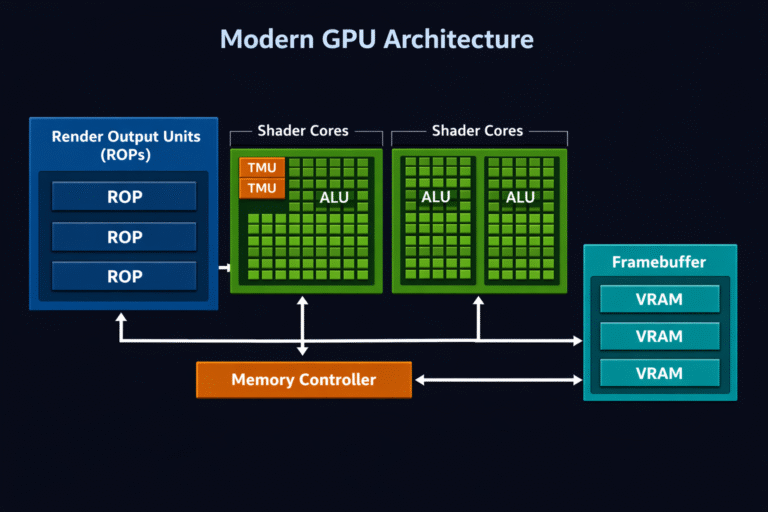
GPU usage represents how much of your graphics card’s processing power is being used at a given time. When it reaches 100%, the GPU is fully utilized to render frames, process visual effects, and handle complex graphics tasks.
When 100% GPU Usage Is Normal
If you’re gaming, editing videos, or using 3D software, 100% usage is expected and healthy.
Common Normal Situations:
- Playing AAA games on high/ultra settings
- Running 1440p or 4K resolution
- Video rendering or streaming
- Using AI or 3D modeling tools
- Uncapped FPS in games
Why Is My GPU Usage at 100% While Gaming?
Your GPU may reach 100% usage while gaming because modern games demand a lot of graphical processing power. When graphics settings, resolution, or effects like ray tracing are high, the GPU works at full capacity to maintain smooth performance and stable FPS.
Gaming at Maximum Settings
High graphics settings push your GPU to its limits. Features like ray tracing, ultra textures, and high shadows demand massive processing power. If your FPS is uncapped, the GPU will keep working harder to produce more frames.
More resolution = more pixels = more load. That’s why 4K gaming almost always hits 100%.
Background Apps Using Your GPU
Hardware Acceleration
Browsers like Chrome and apps like Discord use GPU acceleration.
Even watching YouTube in 4K can increase GPU usage slightly.
Wallpaper & Overlay Software
Animated wallpapers or overlays (Steam, Xbox Game Bar)
can silently consume GPU power in the background.
Hidden Processes
Sometimes a background app keeps rendering
even when minimized, causing constant usage spikes.
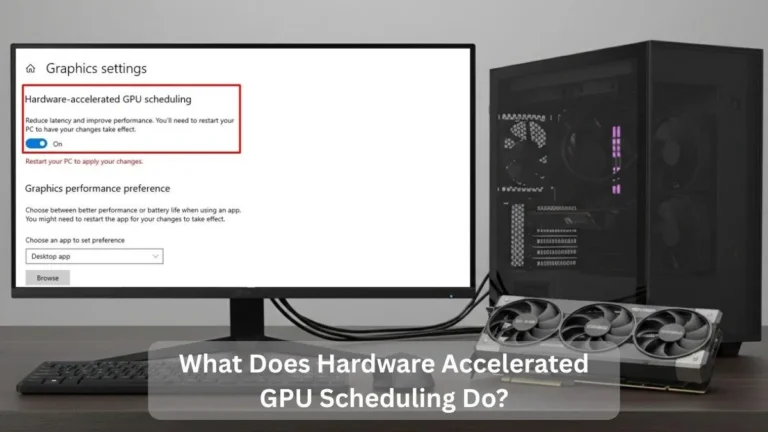
Browsers like Chrome and apps like Discord use GPU acceleration. Features like hardware accelerated GPU scheduling can also affect how your GPU handles background tasks.
CPU Bottleneck vs GPU Bottleneck
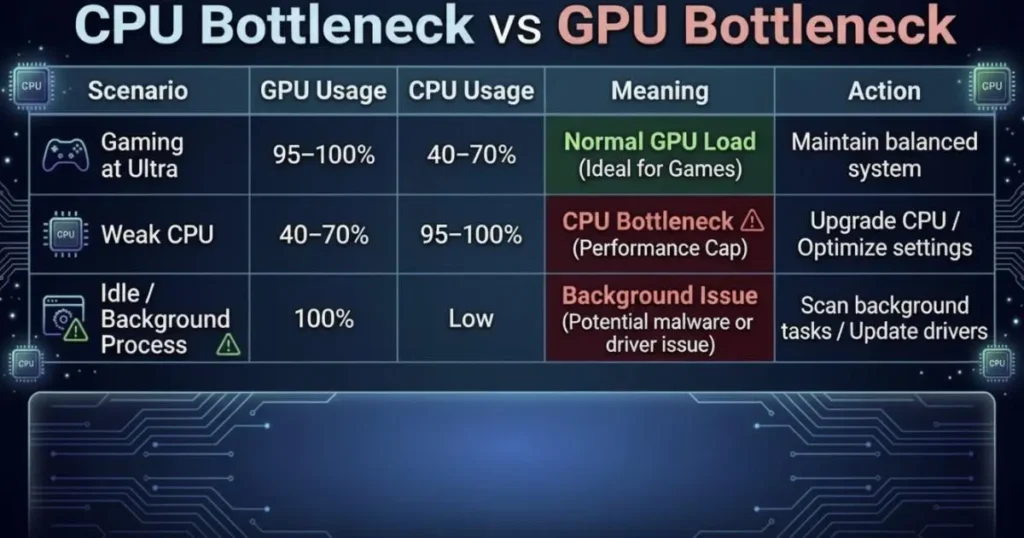
If GPU is at 100% and CPU is low → GPU bottleneck (normal in gaming).
If CPU is 100% and GPU is low → CPU bottleneck.
| Scenario | GPU Usage | CPU Usage | Meaning |
| Gaming at Ultra | 95–100% | 40–70% | Normal GPU load |
| Weak CPU | 40–70% | 95–100% | CPU bottleneck |
| Idle but 100% GPU | 100% | Low | Background issue |
If your CPU is constantly near 100% while GPU usage stays low, it may indicate a bottleneck. Understanding how much CPU usage is normal can help you determine whether your processor is limiting performance.
Driver Problems and Software Conflicts
Outdated or corrupted drivers can cause abnormal GPU behavior. A bad update may trigger constant load spikes or glitches.
Fix:
- Update drivers from NVIDIA/AMD official site
- Or clean install using DDU (Display Driver Uninstaller)
Windows updates sometimes conflict too, especially after major patches.
You can download the latest drivers from the official NVIDIA drivers page to ensure your GPU is running the most stable version.
Malware or Crypto Mining
Sometimes malware or hidden crypto-mining software can use your GPU without your knowledge. If GPU usage stays high while your PC is idle, it may indicate a malicious program running in the background.
Signs of GPU Hijacking
High GPU usage while idle.
Fans spinning loudly for no reason.
What To Do
Run a full antivirus scan.
Use Malwarebytes for deeper checking.
Crypto mining malware secretly uses your GPU to generate income for attackers.
Overheating and Thermal Throttling
If your GPU temperature goes above 85°C, performance may drop even at 100% usage. Heat doesn’t cause high usage but high usage increases heat.
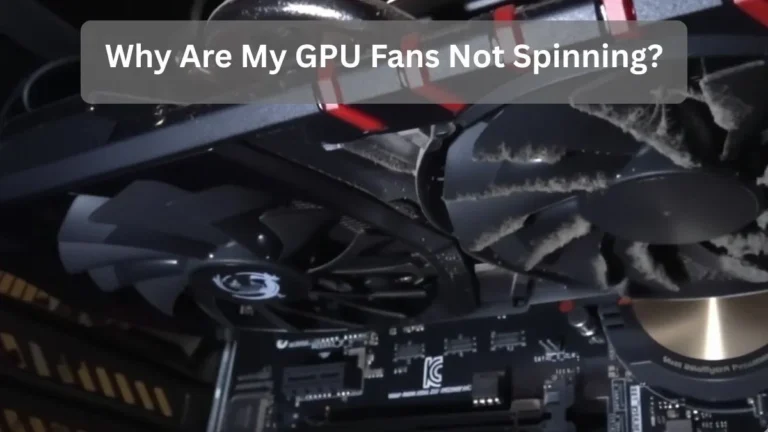
Clean dust from fans.
Improve airflow.
Replace thermal paste if the card is old.
Cooling matters more than most people think.
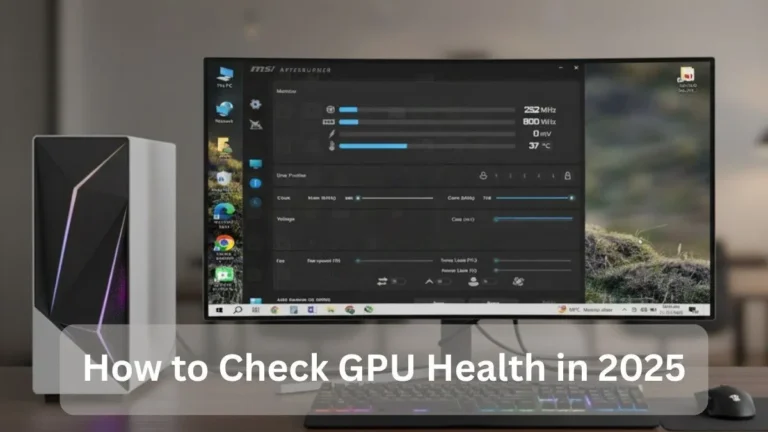
If your GPU temperature goes above safe limits, performance may drop due to thermal throttling. You can learn how to check CPU and GPU temperature to monitor your system and prevent overheating.
Multi-Monitor and High Refresh Rate Setup
Running:
- Dual or triple monitors
- 144Hz / 240Hz refresh rate
- 4K displays
can increase idle GPU usage slightly. High refresh rates demand constant frame output, even on desktop.
Try lowering refresh rate temporarily to test.
How to Fix 100% GPU Usage at All Times
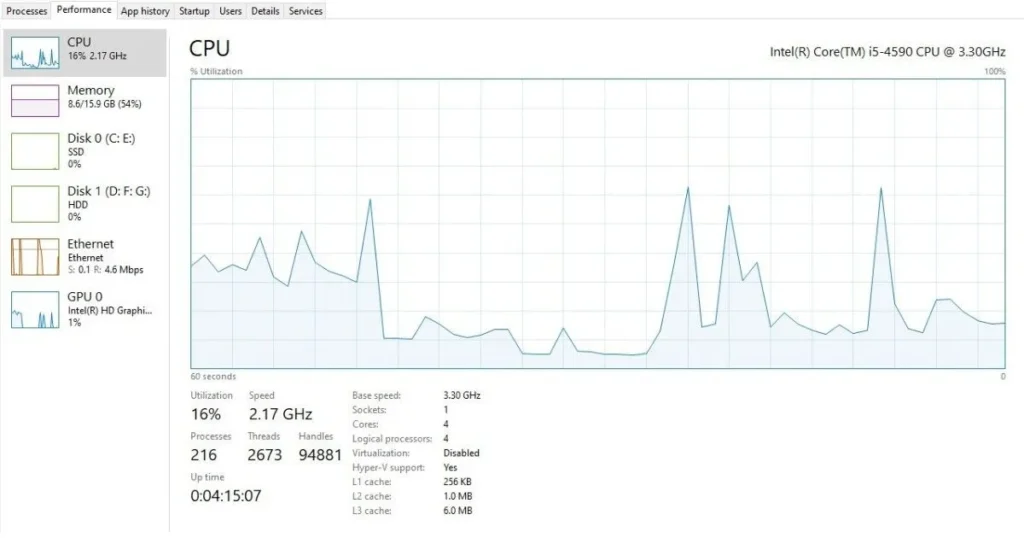
If your GPU usage stays at 100% all the time, check background apps, update drivers, limit FPS in games, and make sure your system is not overheating.
1: Check Background Applications
Some apps, like browsers, overlays, or recording software, may use GPU resources even when you are not gaming.
2: Update GPU Drivers
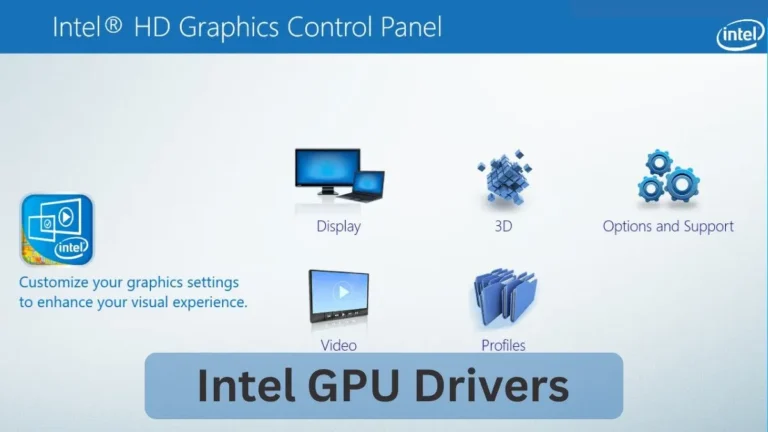
Outdated or corrupted drivers can cause abnormal GPU load. Install the latest drivers from the official NVIDIA, AMD, or Intel website.
3: Limit FPS in Games
If FPS is uncapped, the GPU will render as many frames as possible. Setting an FPS cap can reduce unnecessary load.
4: Lower Heavy Graphics Settings
Reducing options like shadows, ray tracing, and resolution scaling can significantly lower GPU usage.
5: Check for Malware or Hidden Processes
If GPU usage is high while the PC is idle, scan your system for malware or suspicious background programs.
6: Improve Cooling and Airflow
High temperatures can cause performance issues. Clean dust, improve airflow, and ensure your GPU cooling system works properly.
When 100% GPU Usage Is Actually Good
If your game runs smoothly, temperatures are stable, and there’s no crashing—100% usage is perfect. It means your GPU is being fully utilized.
Think of it like using all the horsepower of your car on a highway. That’s what it was built for.
Conclusion
Seeing 100% GPU usage isn’t automatically a problem. It’s normal during gaming and heavy tasks. It only becomes concerning if it happens while idle, causes overheating, or impacts performance. Check background apps, update drivers, scan for malware, and monitor temperatures before assuming hardware failure.
FAQs
1. Is 100% GPU usage bad for gaming?
No. It’s normal and often ideal if temperatures stay safe.
2. Why is my GPU at 100% when I’m not gaming?
Likely background apps, drivers, or possible malware.
3. Can 100% GPU usage damage my graphics card?
Not if cooling is proper and temperatures remain under safe limits.
4. Should I limit FPS to reduce GPU load?
Yes. FPS caps help lower unnecessary GPU strain.
5. Is high GPU usage better than high CPU usage in games?
Yes. Games should ideally be GPU-bound, not CPU-bound.
6. Does bottleneck damage GPU?
No. A bottleneck does not damage a GPU. It only limits performance when another component, like the CPU, cannot keep up.