Can You Plug CPU Fan into SYS_FAN Header? Risks & Safe Fix Guide
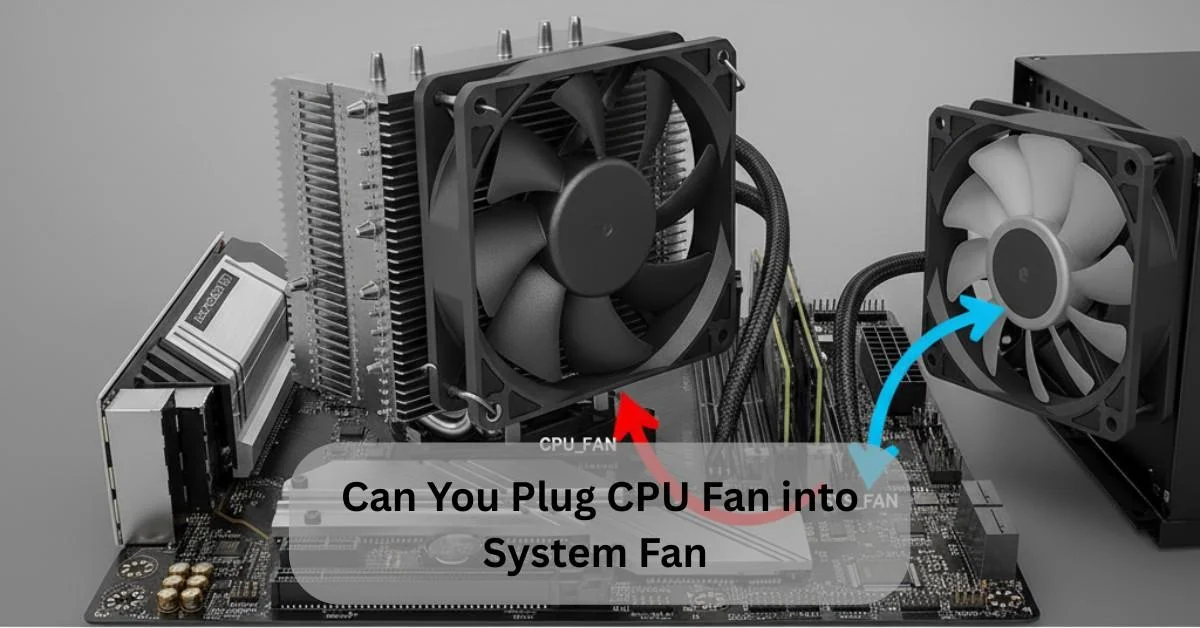
Yes, you can plug a CPU fan into a SYS_FAN (system fan) header, but it is not recommended because the motherboard may not properly monitor CPU temperature. This can cause BIOS warnings, incorrect fan speed control, or inadequate cooling under load. For proper temperature monitoring and automatic speed adjustment, the CPU fan should always be connected to the CPU_FAN header.
In this guide, we will explain when it’s safe to use a system fan header, why BIOS errors appear, and the correct way to connect a CPU fan without risking system stability.
What Happens If You Connect a CPU Fan into SYS_FAN Header?
When a CPU fan is connected to a SYS_FAN header, it may spin normally, but the motherboard cannot fully use CPU temperature data to control fan speed. This means the fan might run too slow or at a fixed speed, which can reduce cooling efficiency. In some cases, the BIOS may also show a CPU fan warning because it cannot detect the fan on the dedicated CPU_FAN header. This setup can work temporarily, but it is not ideal for long-term CPU cooling.
CPU Fan vs SYS_FAN (System Fan): What’s the Difference?
The main difference between a CPU fan and a system fan is their purpose. A CPU fan cools the processor directly and is critical for system safety, while a system fan manages airflow inside the PC case.
CPU Fan Header Explained:
The CPU fan header adjusts fan speed based on CPU temperature, ensuring precise cooling and stable system performance.
SYS_FAN Header Explained:
A SYS_FAN header powers case fans with basic control, suitable for airflow management but not designed for critical CPU cooling.
Key Differences Between CPU FAN and SYS_FAN Headers:
While system fan headers (also called chassis or case fan headers) focus on general airflow, CPU fan headers are temperature-sensitive and essential for system safety. This is why motherboards actively monitor the CPU fan header during boot.
| Feature | CPU Fan Header | System Fan (SYS_FAN) Header |
| Primary Purpose | Cools the CPU directly | Manages overall case airflow |
| Fan Speed Control | Adjusts speed based on CPU temperature | Basic or motherboard-controlled |
| BIOS Monitoring | Actively monitored (errors if missing) | Usually not critical |
| Boot Requirement | Required for system boot | Optional |
| Best Use Case | CPU air coolers & radiator fans | Case intake/exhaust fans |
Is It Safe to Connect a CPU Fan into SYS_FAN Header?
Plugging a CPU fan into a SYS_FAN header can work as a temporary solution, but it is not recommended for long-term use because system fan headers are not designed for critical CPU cooling.
While a CPU fan into SYS_FAN header can function temporarily, it may not respond accurately to CPU temperature changes, increasing overheating risk.
What Happens If You Plug a CPU Fan into a SYS_FAN Header?
Possible Benefits:
- Provides temporary cooling if the CPU fan header is unavailable.
- Can run a basic CPU fan at a fixed or low speed to prevent immediate overheating.
- Easy to connect on most motherboards without special adapters.
Potential Risks:
- System fan headers may supply less power than CPU fan headers, limiting fan speed.
- The BIOS may show CPU fan errors or warning messages during boot.
- Limited fan curve control can cause higher CPU temperatures under load.
- Long-term use may affect CPU stability and overall cooling efficiency.
If your system shows startup warnings after this setup, see our guide on fixing CPU fan errors during boot.
Can a SYS_FAN Header Handle CPU Cooler Power?
In some cases, a SYS_FAN header can power a small air cooler fan, but it often provides less current and lacks temperature-based control. This makes it unreliable for sustained CPU cooling, especially during gaming or heavy workloads.
3 Pin vs 4 Pin Fan Connectors Explained:
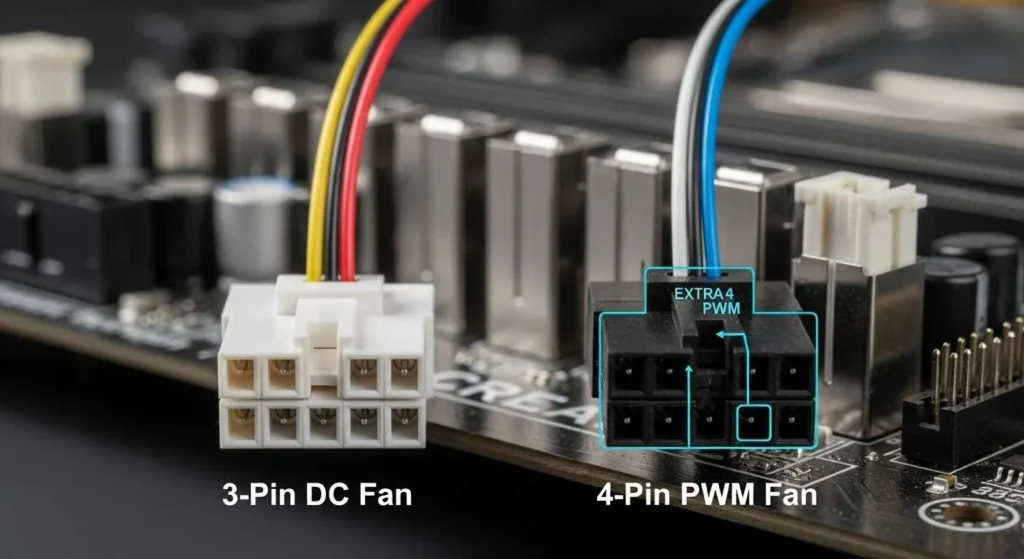
3-Pin Fan (DC Control):
A 3-pin fan adjusts speed by changing voltage, providing basic cooling performance. These fans are widely compatible across most motherboards but may run louder at high speeds.
4-Pin Fan (PWM Control):
A 4-pin PWM fan uses pulse width modulation. The fourth pin sends a control signal for precise and dynamic speed adjustments. This allows the fan to maintain optimal CPU temperature while staying quiet under lighter loads.
According to Intel’s official 4-Wire PWM fan specification, PWM control enables accurate fan speed management and improved thermal efficiency for modern CPUs.
Which One Should You Use for CPU Cooling?
Choose 4-pin PWM fans for CPU cooling, they offer better speed control, stability, and quieter operation. 3-pin DC fans are best suited for case airflow or use with older motherboards that lack PWM headers.
BIOS Settings for CPU Fan vs System Fan:

The BIOS allows you to control both the CPU FAN and SYS_FAN headers. The CPU fan offers temperature-based dynamic control, while the system fan provides more basic speed adjustments. Proper BIOS settings ensure efficient cooling, prevent overheating, and maintain stable system performance.
Fan curves in the BIOS allow the CPU fan to respond directly to CPU temperature, delivering precise and adaptive cooling. System fan curves are simpler and mainly control overall case airflow rather than reacting to CPU heat.
Adjusting these curves correctly helps maintain optimal cooling, reduces noise, and keeps your PC stable under varying workloads.
Also Read: Is 4000 RPM Too Low for CPU Fan? – Optimize Cooling 2025!
Will the Motherboard Boot Without the CPU FAN Connected?
Most modern motherboards will not boot without a CPU fan connected. The BIOS detects the missing fan and may display a CPU fan error, preventing startup as a safety feature to protect the processor from overheating.
While some boards allow you to bypass this warning, it is strongly recommended to keep the CPU fan connected for safe and reliable operation.
For more guidance on safe operating limits, see our detailed guide on what CPU temperature is too hot and how to prevent overheating.
What to Do If the CPU FAN Header Is Broken or Not Working:
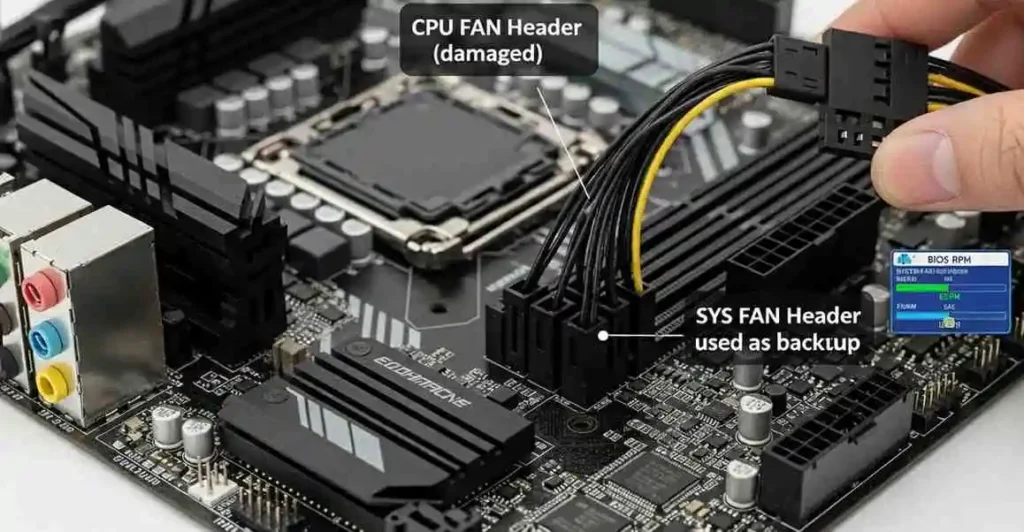
If your CPU fan header is not working, there are a few safe alternatives to keep your system cool until it’s repaired. Try these solutions in order:
1. Use SYS_FAN Header as a Backup:
Temporarily connect the CPU fan to a SYS_FAN header. Then, adjust your BIOS settings to prevent warnings and ensure the fan runs at an adequate speed for proper cooling.
2. Try a Fan Splitter or Hub:
Use a fan splitter or hub to share power safely between multiple fans. This prevents overloading a single header and maintains balanced cooling performance.
3. Check BIOS Settings:
Open the BIOS fan control menu to recognize the alternate header and adjust fan curves for stable operation.
4. Consider a Repair or RMA:
If the CPU fan header is permanently damaged, seek motherboard repair or request an RMA to restore safe CPU cooling and long-term reliability.
Using a CPU fan into SYS_FAN header in this situation is a temporary workaround until the CPU_FAN header is repaired or replaced.
CPU Fan vs Pump Header in AIO Coolers:
When using an AIO (All-in-One) liquid cooler, understanding the difference between the CPU fan header and the pump header is essential for proper cooling and noise control.
CPU Fan Header for Radiator Fans:
The CPU fan header controls the AIO radiator fan, adjusting its speed based on CPU temperature. This ensures the processor receives adequate cooling under varying loads, maintains stability, and prevents overheating. Proper configuration in the BIOS allows dynamic fan curves for efficient and quiet operation.
Pump Header for AIO Pump:
The pump header powers the AIO pump, ensuring a consistent coolant flow throughout the system. Unlike fans, the pump usually runs at a fixed or near-constant speed to maintain reliable liquid circulation.
A proper connection here prevents pump failure, maintains thermal efficiency, and protects the CPU from sudden heat spikes
Best Practices for Connecting CPU and System Fans:
Following these best practices ensures reliable cooling, quiet performance, and long system life:
- Always connect the CPU fan to the CPU fan header for accurate speed control and proper CPU protection.
- Use system fan headers for case or chassis fans to maintain balanced airflow inside the PC.
- Avoid overloading a single header, use fan splitters or hubs when connecting multiple fans.
- Configure fan curves in the BIOS to balance cooling efficiency and noise levels.
- Regularly clean fans and check connections to prevent dust buildup and maintain smooth airflow.
- Monitor system temperatures to verify that fans respond correctly under heavy workloads.
- Replace noisy or failing fans promptly to ensure long-term stability and performance.
Common Myths About Fan Headers:
Myth: Any fan can be connected anywhere
Truth: CPU fans should always connect to CPU fan headers for proper cooling control and BIOS detection.
Myth: SYS_FAN headers provide the same control as CPU Fan
Truth: SYS_FAN headers (system fan) offer limited speed control and are designed for case airflow, not CPU cooling.
Myth: Overloading a header is harmless
Truth: Connecting too many fans to one header can overload power limits, causing instability or motherboard damage.
Myth: Fan speed always matches motherboard RPM readings
Truth: 3-pin DC fans may not report accurate speeds, while 4-pin PWM fans provide more precise RPM monitoring.
Myth: BIOS fan alerts can be safely ignored
Truth: Ignoring BIOS fan warnings can lead to CPU overheating and system instability over time.
FAQ’s:
Can a CPU fan be plugged into a SYS_FAN slot?
Yes, it can work temporarily, but system fan headers usually lack proper CPU-based speed control. This can reduce cooling efficiency and trigger BIOS warnings. For safe operation, always use the dedicated CPU fan header when available.
Can a CPU Fan Damage a SYS_FAN Header?
High-power CPU fans can overload system fan headers, potentially causing unstable fan behavior, BIOS errors, or even header failure. Always check your motherboard’s fan header amperage rating before connecting a CPU fan.
Will the CPU FAN Speed be Displayed if Connected to the SYS_FAN?
Fan speed readings may be inaccurate or unavailable, especially with 3-pin DC fans. Most 4-pin PWM fans can still report RPM correctly to the BIOS and monitoring software.
Why Does BIOS Show CPU Fan Error, Press F1?
This warning appears when the CPU fan is not detected, is connected to the wrong header, or is spinning too slowly. Ensure the fan is connected to the CPU_FAN header and adjust BIOS fan monitoring settings if necessary.
Can I Run a PC Without the CPU Fan Connected?
No. Most modern motherboards prevent booting without a detected CPU fan to protect the processor from overheating. Always keep the CPU fan connected for safe and stable operation.
Can I plug a CPU fan into a pump fan header?
Not recommended. AIO_PUMP headers usually provide constant 12V power for liquid cooling pumps. This can cause excessive noise and poor speed control for CPU fans that require variable operation.
Is it okay to plug a 3 pin fan into a 4 pin?
Yes, it is completely safe. The fan will operate using voltage (DC) control, while the PWM pin remains unused. Most modern motherboards handle this automatically.
Conclusion:
If you are wondering whether connecting a CPU fan into SYS_FAN header is safe, it may work temporarily but is not a reliable long-term solution. SYS_FAN headers are designed for case airflow and may not provide proper CPU temperature monitoring or speed control. For consistent CPU cooling, stable performance, and to avoid BIOS warnings, always connect the fan to the CPU_FAN header and configure BIOS settings correctly. This ensures safe operation and long-term system reliability.