CPU Heats Up When Downloading? Causes, Fixes & Prevention (2026)
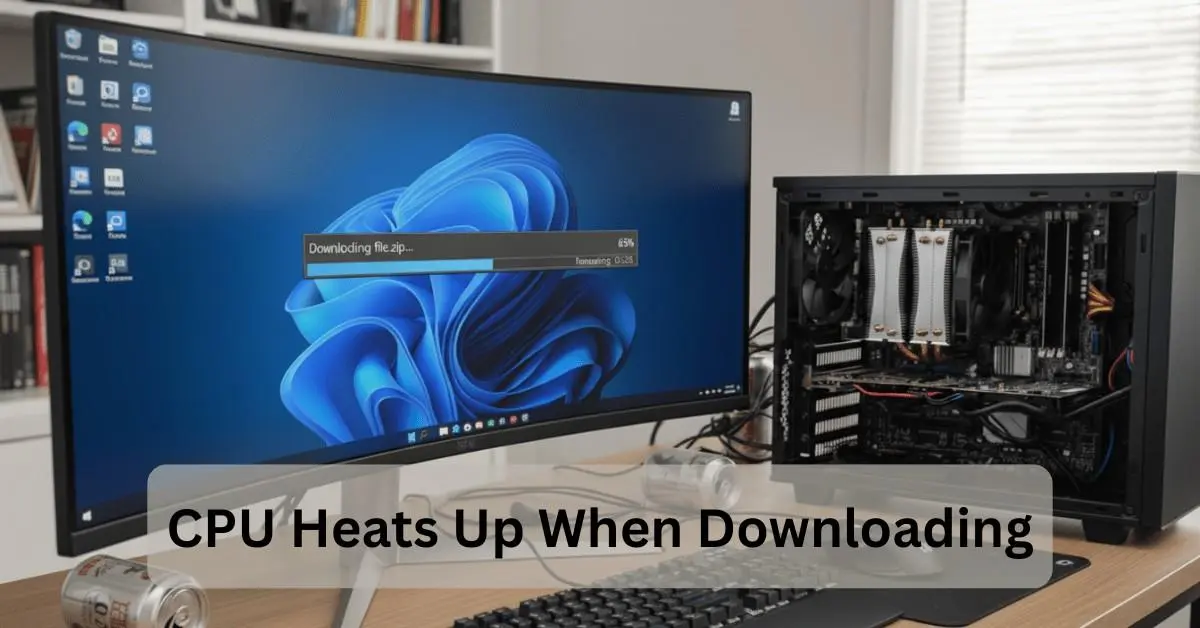
If your CPU heats up when downloading large files, games, or updates, it is usually caused by background tasks such as disk writing, decompression, and antivirus scanning. Short temperature increases are normal, but sustained temperatures between 60–90°C may indicate cooling or system issues.
In this guide, you will learn why CPU temperatures rise during downloads, what temperature range is considered safe, when overheating becomes dangerous, and how to fix the problem effectively.
What Happens Inside Your PC When Downloading?
When you download large files, your system works hard, and your CPU heats up when downloading due to background tasks like disk indexing, decompression, and virus scanning. While brief temperature increases are normal, consistent CPU heating up when downloading may indicate an issue with your cooling system. Monitoring your CPU temperature during downloads helps prevent overheating and potential damage.
Why CPU Heat Up When Downloading?
Poor cooling, high background processes, outdated thermal paste, malware, or resource-intensive tasks like decompression are usually the cause of CPU heat spikes during downloads. These factors increase CPU load, preventing efficient heat dissipation. We’ll explore each cause and offer fixes, including advanced troubleshooting tips to keep your CPU running cool during downloads.
Is It Normal for CPU to Heat Up During Downloads?
Temperatures between 50–70°C are usually safe, depending on your CPU model. Anything above 85–90°C regularly needs immediate attention. If your downloads cause throttling, stuttering, freezing, or sudden restarts, that indicates a hardware or airflow issue.
You can also check what percentage of CPU usage is considered normal to understand if your system is under unusual load.
High CPU Usage from Network Data Processing:
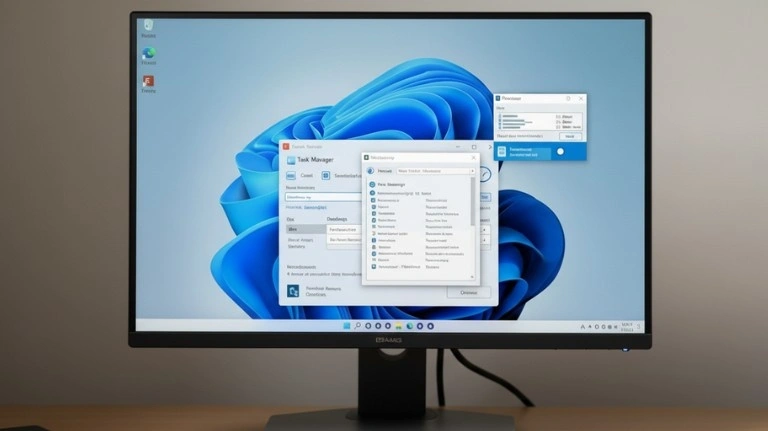
Your CPU may heat up because network drivers and system processes like svchost.exe handle packet processing during downloads.
Disk Writing Load:
Large files mean constant write operations, increasing CPU and SSD/HDD activity.
Antivirus Real-Time Scanning:
Your antivirus scans every downloaded file, raising CPU usage.
App Launchers Running in Background:
Platforms like Steam, Battle.net, and Epic Games decompress files during download, making the CPU work even harder.
Network-Related Causes?
High CPU Usage in Network Drivers:
Faulty or outdated drivers can cause abnormal network load.
Background Windows Updates:
Windows silently downloads patches and uses CPU cycles.
Bandwidth Overhead During Downloads:
High-speed connections (200–1000 Mbps) require more CPU to manage heavy data flow.
Disk-Related Problems Affecting Temperature?
SSD/HDD Bottlenecks:
Older drives generate more heat and force CPU to retry operations.
Fragmentation in Hard Drives:
Mechanical drives get stressed during large downloads.
High Disk Queue Length:
Constant writing increases CPU interrupts and temperature.
Cooling Problems That Lead to CPU Overheating:
Common cooling-related issues include:
- Dust buildup in fans: Dust blocks airflow, traps heat inside the case, and reduces cooling efficiency. Regular cleaning helps maintain proper airflow and stable temperatures.
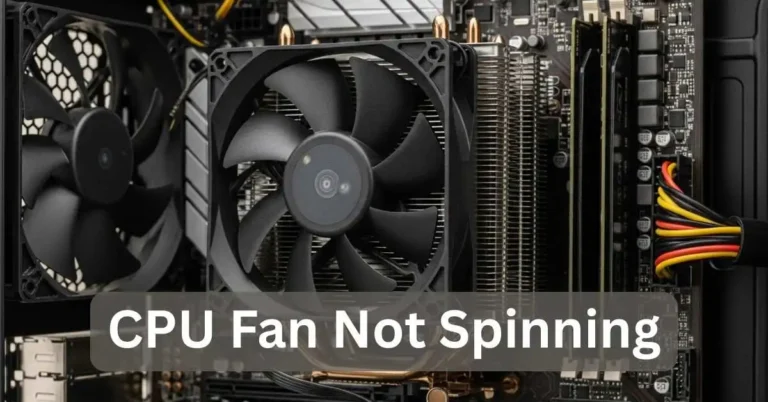
- Faulty or slow CPU fans: If the CPU cooler is not spinning at the correct speed, even simple downloads can cause temperatures to rise quickly.
- Poor case airflow: When hot air cannot escape properly, internal temperatures increase, leading to higher CPU heat.
Software Issues That Cause CPU Overheating:
Malware or Hidden Processes:
Unauthorized software can consume CPU during downloads.
Overloaded Startup Programs:
Too many apps in a startup cause an extra load.
Corrupted System Files:
Corrupted Windows processes may behave abnormally under load.
Game Launcher–Specific CPU Usage:
High CPU usage often occurs because game launchers handle heavy background tasks during downloads and updates. These processes increase system load and raise temperatures.
- Steam performs real-time file decompression during downloads, which leads to high CPU usage and elevated temps.
- Battle.net aggressively unpacks and optimizes game data in the background, causing CPU spikes.
- Epic Games Launcher runs multiple parallel processes during downloads and updates, increasing overall CPU pressure.
How to Fix CPU Overheating When Downloading?
Update Drivers:
Update Drivers:
Keeping your network and chipset drivers updated helps your system manage data transfers more efficiently. Updated drivers reduce unnecessary CPU workload during downloads and lower temperature spikes.
Download official drivers here:
NVIDIA: https://www.nvidia.com/Download/index.aspx
Intel: https://www.intel.com/content/www/us/en/download-center/home.html
AMD: https://www.amd.com/en/support
Improve Airflow:
Good airflow ensures hot air leaves the case quickly and cool air enters smoothly. Adding extra case fans or adjusting airflow direction can prevent heat buildup and stabilize CPU temperatures during heavy downloads.
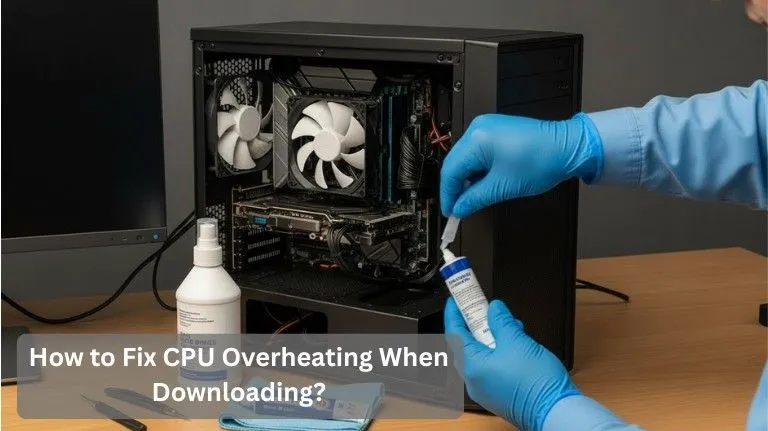
Replace Thermal Paste:
Old or dried thermal paste reduces heat transfer from the CPU to the cooler. Reapplying fresh, high-quality paste improves cooling and helps prevent overheating during downloads.
Advanced Troubleshooting for High CPU Temps:
If you are still facing high CPU temperatures during downloads, advanced troubleshooting like undervolting, adjusting fan curves, and disabling unnecessary background services can help lower temps without affecting performance.
- Undervolt the CPU to reduce heat without impacting performance using tools like Intel XTU or Ryzen Master.
- Tune the BIOS fan curve to increase fan speeds during downloads, improving heat dissipation.
- Disable unnecessary background services to free up CPU resources and reduce load.
- Switch to a balanced power plan to prevent the CPU from running at full load constantly.
- Scan for malware or bloatware, as they can use up CPU resources and cause overheating.
Safe Temperature Range for CPUs?
Safe CPU temperature ranges during downloads typically fall within these limits:
- Intel CPUs: Most Intel processors stay safe between 50–75°C during downloads and light to moderate workloads. This range does not put stress on the system under normal conditions.
- AMD Ryzen CPUs: Ryzen processors usually operate safely between 45–70°C during light tasks. Temperatures may rise slightly if background processes are active or airflow is restricted.
- Thermal throttle limit: Both Intel and AMD CPUs begin thermal throttling around 85–90°C. At this point, the processor automatically reduces performance to prevent heat damage.
If you are unsure whether 80°C is considered safe, read our detailed guide on whether 80°C is hot for a CPU during gaming or heavy tasks.
How Long Can Your CPU Run Hot While Downloading?
Your CPU can handle brief temperature spikes, but consistent high temps over 90°C should be avoided to prevent damage.
Short Periods Are Fine:
Brief temperature spikes during downloads are normal and generally not a concern.
Long Downloads Are Safe If Temps Are Below 80°C:
If your CPU temperature remains below 80°C during extended downloads, there is no significant risk. It is important to monitor the temperature to ensure it doesn’t climb too high for prolonged periods.
Over 90°C for Hours Is Dangerous:
Consistent temperatures above 90°C can cause permanent damage to your CPU and motherboard over time.
Keep an Eye on Your Temps:
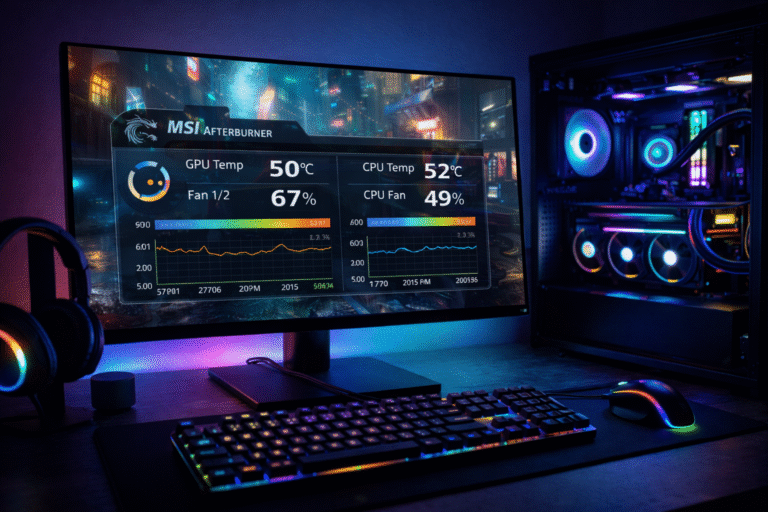
Monitor CPU temps regularly to ensure they don’t exceed safe limits during extended downloads.
Common Mistakes Users Make?
Many users overlook simple issues that directly cause higher CPU temperatures during downloads. These mistakes usually relate to poor airflow, aging hardware, or unnecessary airflow restrictions that limit cooling performance.
- Ignoring case airflow: not having enough intake/exhaust fans leads to heat buildup.
- Installing apps on old HDDs: slow, aging drives create extra system load and raise temps.
- Using thick dust filters: overly dense filters block airflow and cause higher internal temperatures.
Best Practices to Keep CPU Cool:
To prevent overheating, regularly maintain your cooling system, optimize your hardware setup, and clean your PC to ensure optimal airflow.
Use a Good Thermal Paste:
Replace the thermal paste every 2–3 years to ensure efficient heat transfer and prevent the CPU from overheating.
Maintain Regular Cleaning:
Cleaning your PC every 3 months helps remove dust from fans and vents, ensuring better airflow and cooling efficiency.
Optimize Download Locations:
Using an SSD for large downloads reduces CPU strain, as SSDs handle data faster than traditional HDDs, preventing heat buildup.
Improve Case Airflow:
Good airflow is crucial for maintaining optimal temperatures in your PC. Add extra fans or adjust fan positioning to ensure that cool air flows in and hot air is expelled effectively, preventing heat buildup inside the case.
Check CPU and Case Fans:
If your system is overheating, check that the fans are working properly. Faulty or slow fans need to be replaced to keep your CPU cool during heavy tasks.
If high CPU load is affecting your games, here’s how to reduce CPU usage while gaming for smoother performance.
FAQs:
1. Why does my CPU heat up only when downloading?
Because the CPU handles network, disk writing, and file verification processes during downloads.
2. Does high download speed cause CPU usage?
Yes. Faster downloads create more packet processing load.
3. Can malware cause my CPU to heat up?
Absolutely. Malware often hides behind network activity.
4. Why does Steam cause my CPU to spike?
Steam decompresses game files while downloading.
5. Can I reduce CPU heat without upgrading parts?
Yes, clean fans, update drivers, optimize settings.
6. Is long-time downloading harmful?
Only if temperatures stay above 85–90°C.
Conclusion:
Your CPU heating up during downloads is not always a sign of a problem, but consistently high temperatures are worth fixing. With proper cooling, driver updates, and system optimization, you can keep your CPU stable even during heavy downloads. Whether you’re a beginner or a power user, the solutions in this guide will help maintain safe temperatures and improve PC performance.