Fatal Glibc Error: CPU Does Not Support x86-64-v2 – Complete Guide (2026)
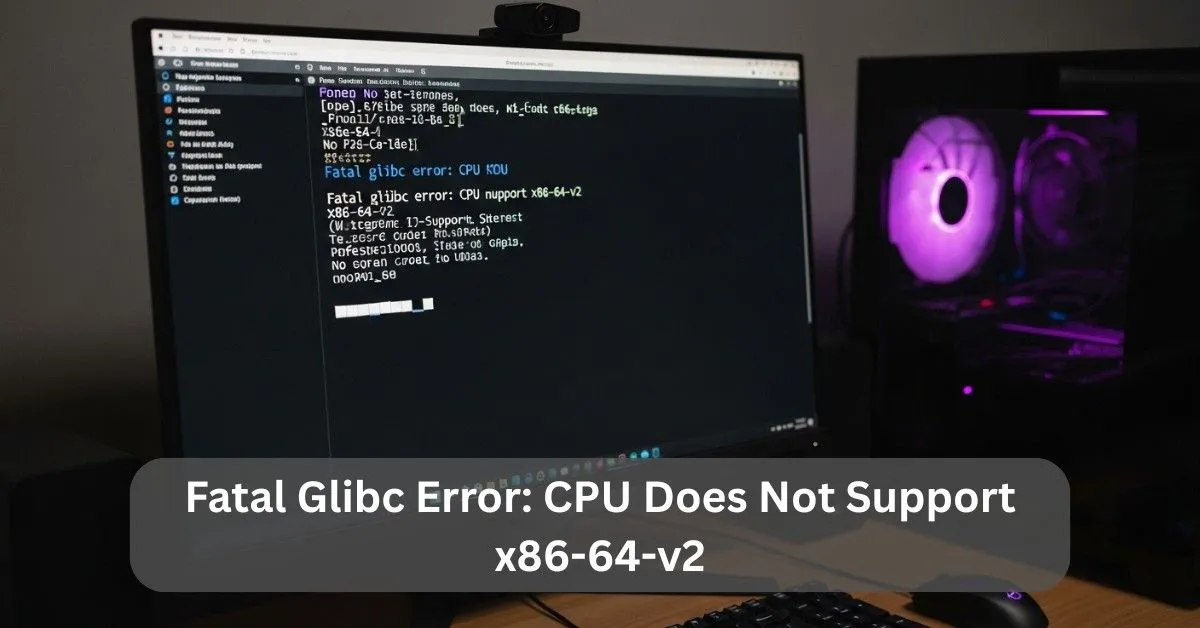
The “Fatal glibc error: CPU does not support x86-64-v2″ occurs when your processor lacks the modern instruction sets required by newer Linux systems and applications. Many modern Linux distributions and containers now require x86-64-v2 support, which includes instructions like SSE4.2, SSSE3, and POPCNT. Older CPUs cannot execute these instructions, causing the system or virtual machine to fail during startup or installation.
In this guide, you will learn what causes this error, how to check CPU compatibility, and the best ways to fix it on Linux, virtual machines, and older hardware.
What Does “Fatal Glibc Error: CPU Does Not Support x86-64-v2” Mean?
This error occurs when your CPU does not support the x86-64-v2 instruction set required by modern Linux systems. Older processors lack these instructions, so the operating system, virtual machine, or application cannot run and shows the fatal glibc error.
What Is The x86-64-v2 Instruction Set?
x86-64-v2 is a newer CPU instruction set required by modern Linux distributions and glibc versions. It includes features like SSE4.2, POPCNT, and other performance improvements. Older CPUs released before 2013 often do not support these instructions, which causes compatibility errors.
Which Linux Distributions Require x86-64-v2?
Many modern Linux distributions now require x86-64-v2 support because it improves performance, security, and compatibility with newer software. This requirement mainly affects older processors released before around 2013.
Some newer Linux versions that require or prefer x86-64-v2 include:
- Ubuntu 23.10 and newer: These versions are optimized for newer CPUs and may not run properly on older hardware without required instruction sets.
- Debian 12 and newer: Debian has started focusing on modern CPU features, and future releases are increasingly dependent on x86-64-v2 compatibility.
- Fedora 38 and newer: Fedora often adopts newer CPU standards early, which means older processors may show compatibility errors.
- Arch Linux (latest releases): Arch Linux targets modern systems, and some packages are built with newer CPU instruction requirements.
If your CPU does not support x86-64-v2, you can still use older and stable distributions such as Ubuntu 20.04, Debian 10, or older LTS releases, which are designed to work with legacy processors.
Before installing any Linux distribution, it is recommended to check your CPU model and supported instruction flags to avoid compatibility errors like the Fatal Glibc Error.
What Causes Fatal Glibc Error CPU Not Support x86-64-v2?
New Linux versions depend on the x86-64-v2 instruction set inside glibc. Many old processors do not include important CPU flags such as SSE4.2, AVX, and BMI1. When glibc loads code that your CPU cannot understand, Linux stops and shows a fatal error.
The new glibc versions use x86-64-v2 instructions that older CPUs cannot run, and you can check these requirements directly from the official GNU glibc documentation: https://www.gnu.org/software/libc/
In simple words: Your CPU is old → glibc needs modern instructions → system fails.
How to Fix CPU Does Not Support x86-64-v2 Error:
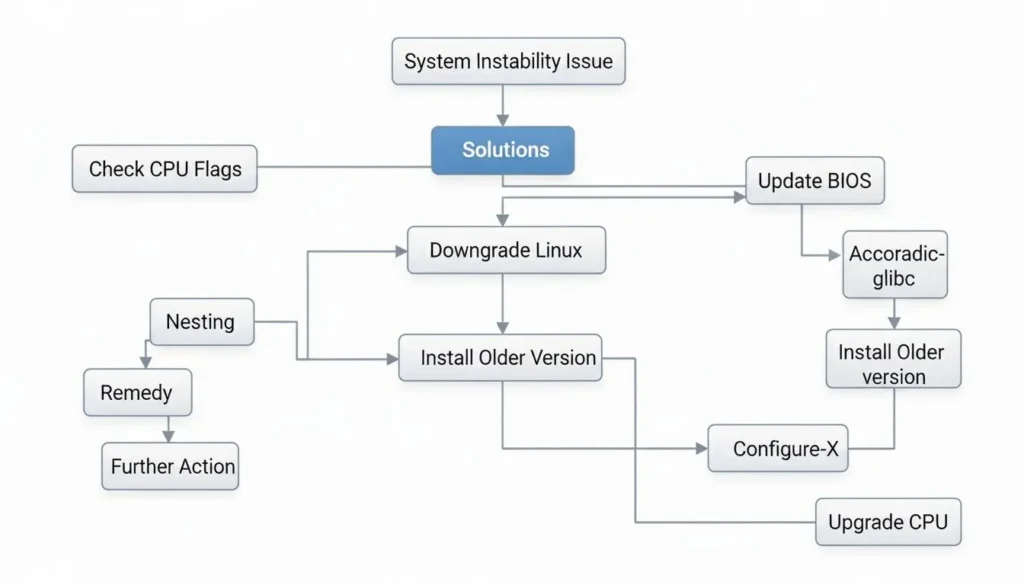
When this error appears, your system may fail to boot or certain apps may stop working. You can fix it by checking CPU features, using an older Linux version, or upgrading your hardware.
1. Check Your CPU Model:
Run:
cat /proc/cpuinfo | grep "model name"
2. Check CPU Flags (Required for x86-64-v2):
Use:
lscpu | grep Flags
Look for sse4_2 and avx.
If these are missing → your CPU cannot support x86-64-v2.
3. Install an Older Linux Version:
Use distros that support x86-64-v1 CPUs:
- Ubuntu 18.04
- Debian 10
- CentOS 7
4. Install an Older Version of glibc:
If the system updated glibc by mistake, downgrade to an earlier version.
5. In Virtual Machines:
Make sure:
- CPU passthrough = Enabled
- VT-x / AMD-V = On
- Nested virtualization = On
6. Update Your BIOS:
Some BIOS updates unlock missing CPU instruction sets.
7. Upgrade Your CPU (Last Option):
If nothing works, upgrade to a CPU released in 2013 or newer.
Proper chipset and firmware configuration is important for compatibility. Learn whether modern processors need CPU drivers for stability and performance to avoid system errors.
Why Is My VM Showing CPU Does Not Support x86-64-v2?
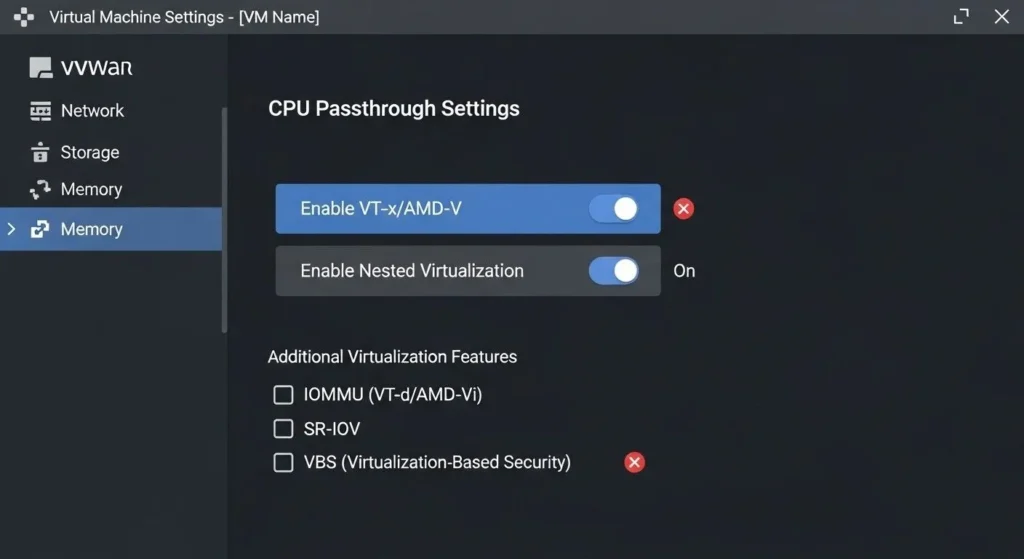
Host CPU Features Not Passed Through:
If passthrough is off, the VM cannot access real CPU instructions and fails to load glibc.
Virtualization Disabled:
If VT-x/AMD-V is disabled, the VM loses important CPU features needed for x86-64-v2.
Wrong CPU Type in VM Settings:
Selecting a basic or generic CPU hides real CPU flags. The VM thinks your processor is older than it is.
Outdated Hypervisor:
Old QEMU/VirtualBox versions do not fully support new CPU levels. Updating your hypervisor fixes this.
CPU compatibility issues often appear after hardware upgrades. You should know if reinstalling Windows is necessary when installing a new CPU to prevent system conflicts.
Can I Run Linux Without x86-64-v2 CPU Support?
Yes, but only if you use older Linux distributions.
Distros like Debian 10, Ubuntu 18.04, and CentOS 7 still support older x86-64-v1 CPUs.
You can also install 32-bit Linux, but it may be slower, and many modern apps will not run.
How To Solve CPU Not Support Error in Docker?
- Open Docker Desktop or CLI
- Check if the base image uses x86-64-v2
- Use images like debian:10 or ubuntu:18.04
- Add this to build command:
–platform linux/amd64/v1 - Turn on QEMU emulation if needed
- Update Docker Engine
- Rebuild the container
What CPUs Support x86-64-v2 Architecture?
Supported CPUs:
- Intel 3rd Gen Core (Ivy Bridge) and newer
- AMD Bulldozer and newer
- Apple M-Series (via translation)
- All Ryzen CPUs
- New Xeon processors
CPU Family vs Architecture Table:
| CPU Family | Architecture | x86-64-v2 Support |
| Intel Core 2 Duo | x86-64-v1 | No |
| Intel i5 (3rd+) | x86-64-v2 | Yes |
| AMD Phenom II | x86-64-v1 | No |
| AMD Ryzen | x86-64-v2 | Yes |
| Xeon E5 | x86-64-v2 | Yes |
Why Does New Linux Fail on Older CPUs?
Modern Linux uses updated instructions for better speed and security.
Older CPUs cannot run these instructions, so glibc fails to load.
To avoid this, use older distros or lightweight systems like AntiX or MX Linux.
How To Avoid CPU Not Support x86-64-v2 Issue?
- Check CPU support before updating Linux
- Use LTS versions
- Avoid rolling-release systems on old hardware
- Keep BIOS updated
- Always back up your data
Tip: Knowing your CPU limits helps you avoid future problems.
Keeping your system optimized can prevent many CPU-related problems. Learn how to reduce CPU usage and improve overall system performance for better stability.
How to Check CPU Compatibility Before Installing Linux:
Before installing any Linux distribution, it is important to verify whether your CPU supports the required instruction sets like x86-64-v2. This helps prevent boot errors and compatibility problems during installation.
1. Check Your CPU Model in Your Current System:
On Linux, open Terminal and run:
lscpu
On Windows, open Command Prompt and run:
wmic cpu get name
This will show your processor model, which you can search online to see its supported features.
2. Check CPU Flags (Instruction Support):
On Linux, run this command:
lscpu | grep Flags
Look for important flags such as:
- sse4_2
- popcnt
- cx16
- ssse3
If these flags are present, your CPU likely supports x86-64-v2.
3. Check CPU Specifications Online:
Visit the official Intel or AMD website and search your CPU model. Check the supported instruction sets section to confirm compatibility.
4. Review Linux Distribution System Requirements:
Before downloading, check the official website of your Linux distribution. Modern versions of Ubuntu, Fedora, and Debian may require newer CPU instruction support.
5. Test Using a Live USB (Recommended):
Create a bootable Linux USB and run the live version without installing. If the system boots and runs normally, your CPU is compatible. If you see errors like “CPU does not support x86-64-v2,” your processor may not meet the requirements.
Checking CPU compatibility in advance can save time and help you choose the correct Linux version for your hardware.
FAQs:
1. What does the “Fatal Glibc Error: CPU Does Not Support x86-64-v2” mean?
It means your CPU is too old and cannot run the new glibc files that need x86-64-v2 instructions.
2. How do I fix this error without changing hardware?
Use an older Linux version, a lightweight distro, or run apps using a compatible Docker image.
3. How do I check if my CPU supports x86-64-v2?
Use lscpu, cat /proc/cpuinfo, or Windows tools like CPU-Z to see if you have SSE4.2, AVX, and BMI1.
4. Why do new Linux versions fail on old CPUs?
They use faster and safer instructions that older processors cannot run.
5. Which CPUs fully support x86-64-v2 in 2025?
Most Intel 3rd Gen and newer CPUs, and almost all AMD Ryzen processors.
Conclusion:
The fatal glibc error appears when your CPU cannot handle modern Linux instructions. You can solve it by downgrading Linux, using older glibc, or upgrading your CPU. With the right setup, Linux will run smoothly without any errors.