How to Reduce CPU Usage While Gaming (Fix High CPU 2026)
High CPU usage while gaming can cause FPS drops, overheating, and lag. The good news is that you can fix this problem by optimizing settings, updating drivers, improving cooling, and stopping unnecessary background apps.
This guide explains the safest and most effective 2026 methods to fix high CPU usage for better gaming performance.
How to Reduce CPU Usage While Gaming: (Quick Answer)
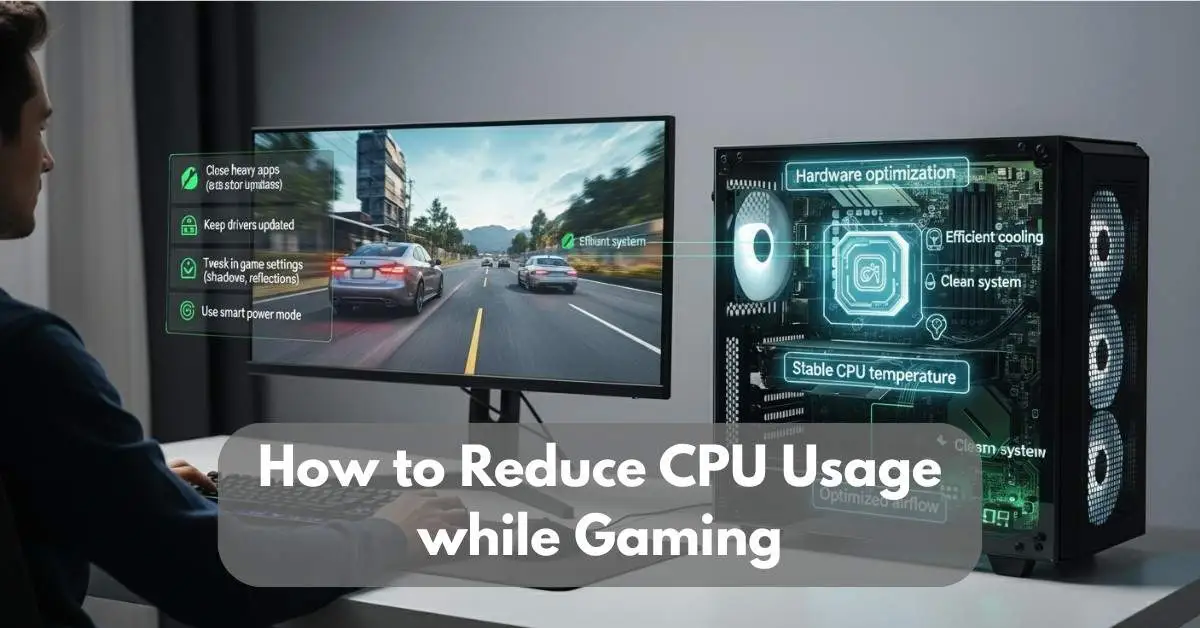
To reduce high CPU usage while gaming, close unnecessary background programs, update chipset and GPU drivers, lower CPU-intensive game settings, and ensure proper cooling. Using the correct Windows power plan and disabling startup apps can also significantly improve performance and reduce CPU spikes.
What Causes High CPU Usage While Gaming?
High CPU usage during gaming happens when your processor handles too many tasks at once. Modern games require constant communication between the CPU, GPU, RAM, and storage.
Common causes include:
- Too many background apps running
- Outdated chipset or GPU drivers
- CPU overheating and thermal throttling
- High CPU-intensive game settings
- Malware or unnecessary startup programs
- CPU bottleneck with powerful GPU
Identifying the cause helps you apply the correct fix.
If you’re unsure whether your CPU load is normal, check our guide on what percentage of CPU usage is considered normal during gaming.
Close Background Apps to Free CPU Resources:
Many apps continue running in the background even when you are gaming. These apps consume CPU power and reduce gaming performance.
To fix this:
- Press Ctrl + Shift + Esc to open Task Manager
- Click on Processes tab
- Find apps using high CPU
- Select and click End Task
Closing unnecessary apps can instantly reduce CPU usage by 10–30%.
Update Chipset and Graphics Drivers:
Outdated drivers can cause poor communication between hardware and the operating system. This increases CPU usage and reduces efficiency.
Updating drivers helps:
- Improve CPU efficiency
- Fix bugs and performance issues
- Reduce CPU spikes
Download latest drivers from the official Intel, AMD, or motherboard manufacturer website.
If you are confused about drivers, read our explanation on whether you really need CPU drivers installed.
Change Windows Power Plan for Better Performance:
Windows power settings directly affect how your CPU behaves during gaming. If your system is set to Power Saver mode, the CPU may reduce its speed to save energy. This can cause lower FPS, stuttering, and higher CPU usage spikes.
For gaming, it is better to use Balanced or High Performance mode.
How to change power plan:
- Open Control Panel
- Go to Hardware and Sound
- Click Power Options
- Select Balanced or High Performance
The Balanced plan is recommended for most gamers because it allows the CPU to increase speed when needed while keeping temperatures under control. High Performance mode can give slightly better responsiveness but may increase heat and power usage.
Using the correct power plan helps your CPU work efficiently without unnecessary stress during gameplay.
Disable Startup Programs
Many programs automatically start when Windows boots. These startup apps continue running in the background and use CPU resources even while you are gaming. Over time, this increases CPU usage and reduces system performance.
Disabling unnecessary startup programs can free up CPU power and improve gaming stability.
How to Disable Startup Programs in Windows
- Press Ctrl + Shift + Esc to open Task Manager
- Click on the Startup tab
- Check which programs are enabled
- Right-click on unnecessary apps and select Disable
Avoid disabling important system or security programs. Focus on apps like launchers, updaters, or software you do not use regularly.
Reducing startup programs helps your PC boot faster and lowers background CPU usage during gameplay.
Can In-Game Settings Reduce CPU Load?
Yes, in-game settings directly impact how much pressure your CPU handles. Games with ultra settings require more calculations, resulting in a higher CPU load. Lowering specific settings can help balance the workload between the CPU and GPU, allowing you to reduce CPU usage while gaming without compromising visual quality.
To optimize, reduce shadow quality, view distance, and texture filtering. These settings are CPU-heavy. Keep resolution and anti-aliasing mostly GPU-bound. This balance lets your processor run cooler and prevents frame drops.
Do Outdated Drivers Increase CPU Usage?
Outdated or faulty drivers can cause high CPU usage by mismanaging communication between hardware and the system. Keeping drivers updated helps improve gaming performance and system stability.
How Thermal Issues Affect Gaming Performance?
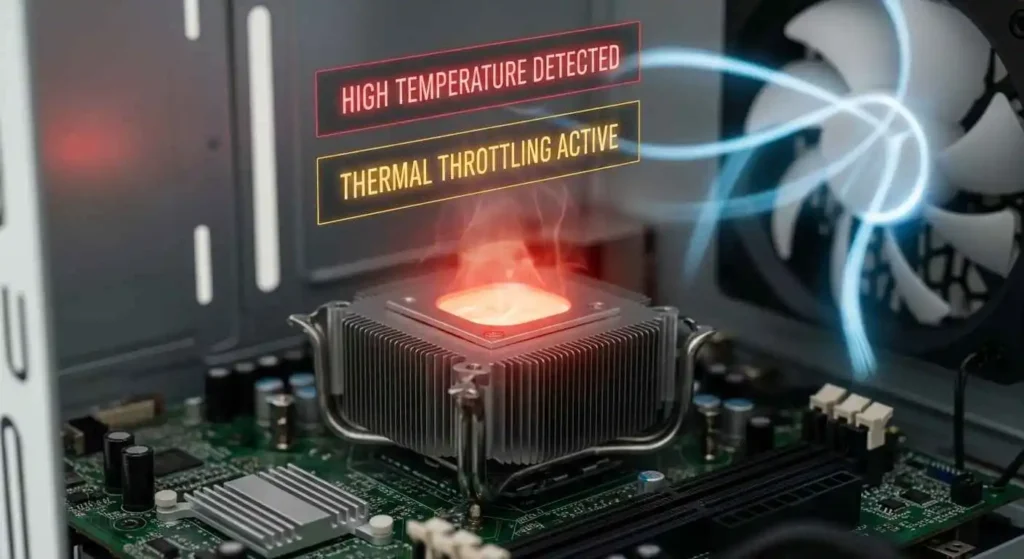
When your CPU overheats, it automatically lowers its clock speed. This is called thermal throttling. As a result game performance drops and CPU usage may appear unstable. Proper cooling ensures stable gaming sessions and keeps your processor safe.
Common Causes of CPU Overheating:
- Dust blocking fans or heatsinks.
- Dried or cheap thermal paste.
- Poor airflow inside the PC case.
- Overclocking without proper cooling.
Maintaining temperatures below 80°C helps ensure stable performance and promotes the long-term health of the hardware.
You should also understand what temperature is considered hot for a CPU during gaming to prevent thermal throttling.
Can Cleaning Junk Files Improve CPU Speed?
Yes, cleaning junk files helps free up system resources. Over time, cached data, temporary files, and background logs can slow CPU response. Regularly cleaning up can boost speed and maintain stability while gaming.
Quick cleanup steps:
- Run Disk Cleanup or Storage Sense in Windows.
- Use CCleaner or BleachBit for deep cleaning.
- Delete temp files by pressing Win + R, typing %temp%, and deleting all.
- Uninstall unused apps that run services in the background.
This simple habit helps your PC run smoother and stay more responsive while gaming.
How to Use Booster Tools to Lower CPU Usage?
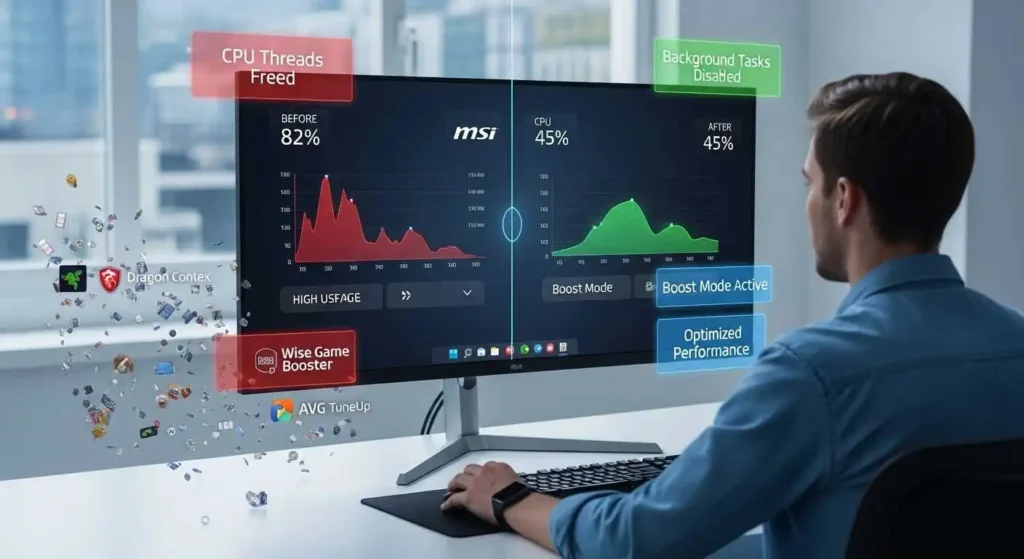
Performance booster tools automatically stop unnecessary processes before gaming starts. They are a quick and safe way to lower CPU stress without manual tweaks.
Top booster tools:
- Razer Cortex: Frees RAM and CPU threads for smoother gameplay.
- MSI Dragon Centre: Automatically optimizes gaming mode.
- Wise Game Booster: Shuts down background services instantly.
- AVG TuneUp: Cleans junk files and optimizes CPU usage.
These tools help optimize system performance and reduce unnecessary load when installed properly.
Do Graphics Settings Impact CPU Performance?
Yes, graphics settings can affect CPU load, but it depends on how the game handles rendering. Settings like shadows, lighting, and post-processing are CPU-dependent, while textures and resolution are GPU-dependent.
If your CPU is overloaded, reduce CPU-heavy settings and slightly increase GPU tasks. This load balance can significantly reduce CPU usage while gaming and deliver smoother gameplay.
Can Undervolting Reduce CPU Temperature?
Undervolting refers to lowering the CPU voltage slightly to reduce heat without compromising performance. It is one of the safest and most effective ways to control high CPU usage and temperature.
| CPU Type | Safe Voltage Range | Expected Temp Drop |
| Intel i5 / i7 (10th–13th Gen) | -80mV to -120mV | 5–10°C |
| AMD Ryzen 5 / 7 | -50mV to -100mV | 4–8°C |
This method enhances overall efficiency while maintaining stable performance without compromising frame rates.
What Hardware Upgrades Lower CPU Bottlenecks?
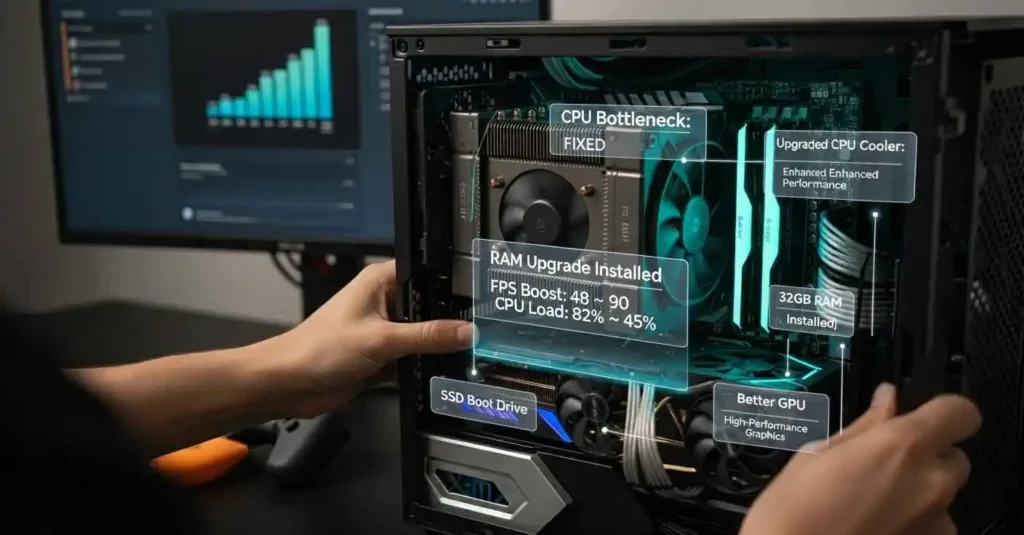
Upgrading key components helps reduce CPU bottlenecks and improves overall gaming performance. A balanced mix of faster memory, efficient cooling, and storage upgrades ensures smoother gameplay and stable frame rates.
After upgrading your processor, you may also wonder if you need to reinstall Windows after installing a new CPU.
How to Monitor CPU Usage During Gameplay?
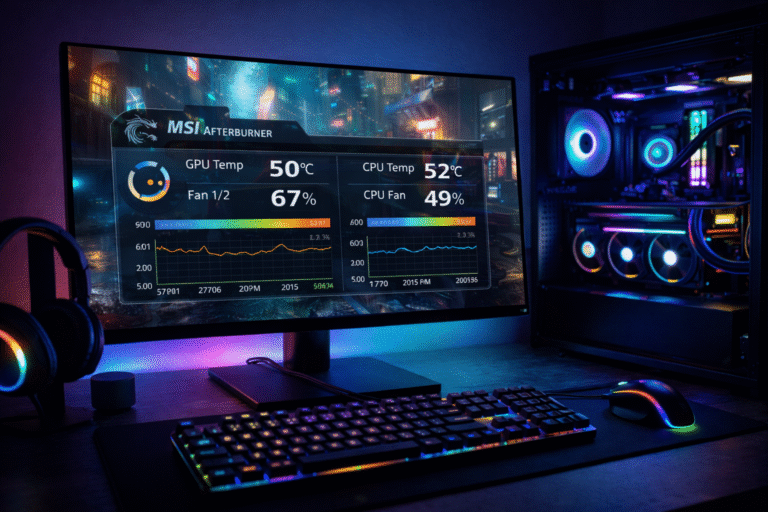
Monitoring your CPU usage during gaming is essential to identify what is causing sudden spikes or frame drops. Tools like MSI Afterburner, HWMonitor, or HWiNFO let you track CPU temperature, clock speed, and usage percentage in real time helping you see whether your processor is being overworked.
If you notice that CPU usage stays high while your GPU remains underutilized, it’s a sign of imbalance. In that case, adjust in-game settings, close unnecessary background programs, or upgrade key hardware components. Regular monitoring and minor adjustments can significantly reduce CPU usage while gaming, resulting in smoother performance and more stable frame rates.
FAQs:
1. Why is my CPU at 100% while gaming?
Because too many background processes or poor game optimization overload your CPU.
2. Does lowering resolution reduce CPU usage?
Not directly, it mainly affects the GPU, not the CPU load.
3. Should I disable antivirus during gaming?
Yes, but only temporarily and if you are offline it saves CPU cycles.
4. How often should I clean my PC to maintain CPU health?
Once every 3–4 months is ideal to prevent overheating.
5. Can more RAM reduce CPU usage?
Yes, having more RAM means fewer CPU cycles spent on memory management.
Conclusion:
High CPU usage while gaming is usually caused by background apps, outdated drivers, poor cooling, or incorrect settings. By closing unnecessary programs, updating drivers, improving cooling, and optimizing game settings, you can significantly reduce CPU usage.
These fixes improve gaming performance, reduce lag, and help your system run smoothly and safely.